Compare and Export Navigator Layers
Combine multiple layers with compatible scoring rules, then export the result as reusable JSON, a spreadsheet-style table, or a scalable SVG visual.
Compare like with like
Combine layers only when their domain, ATT&CK version, scope, scoring meaning, and evidence standard are compatible. A mathematically valid expression can still create a misleading assessment.
Layer comparison and export workflow
Combining Multiple Layers
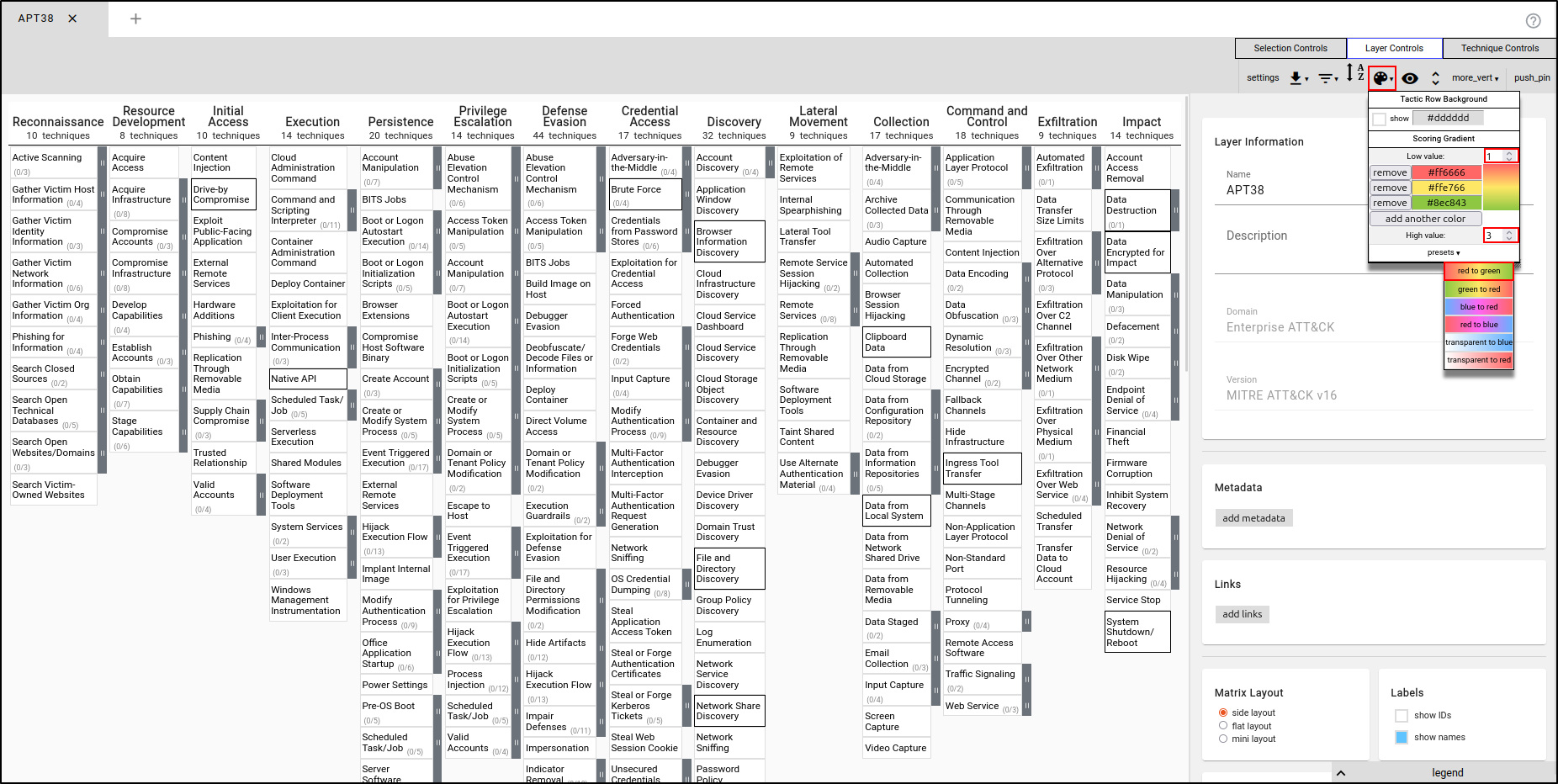
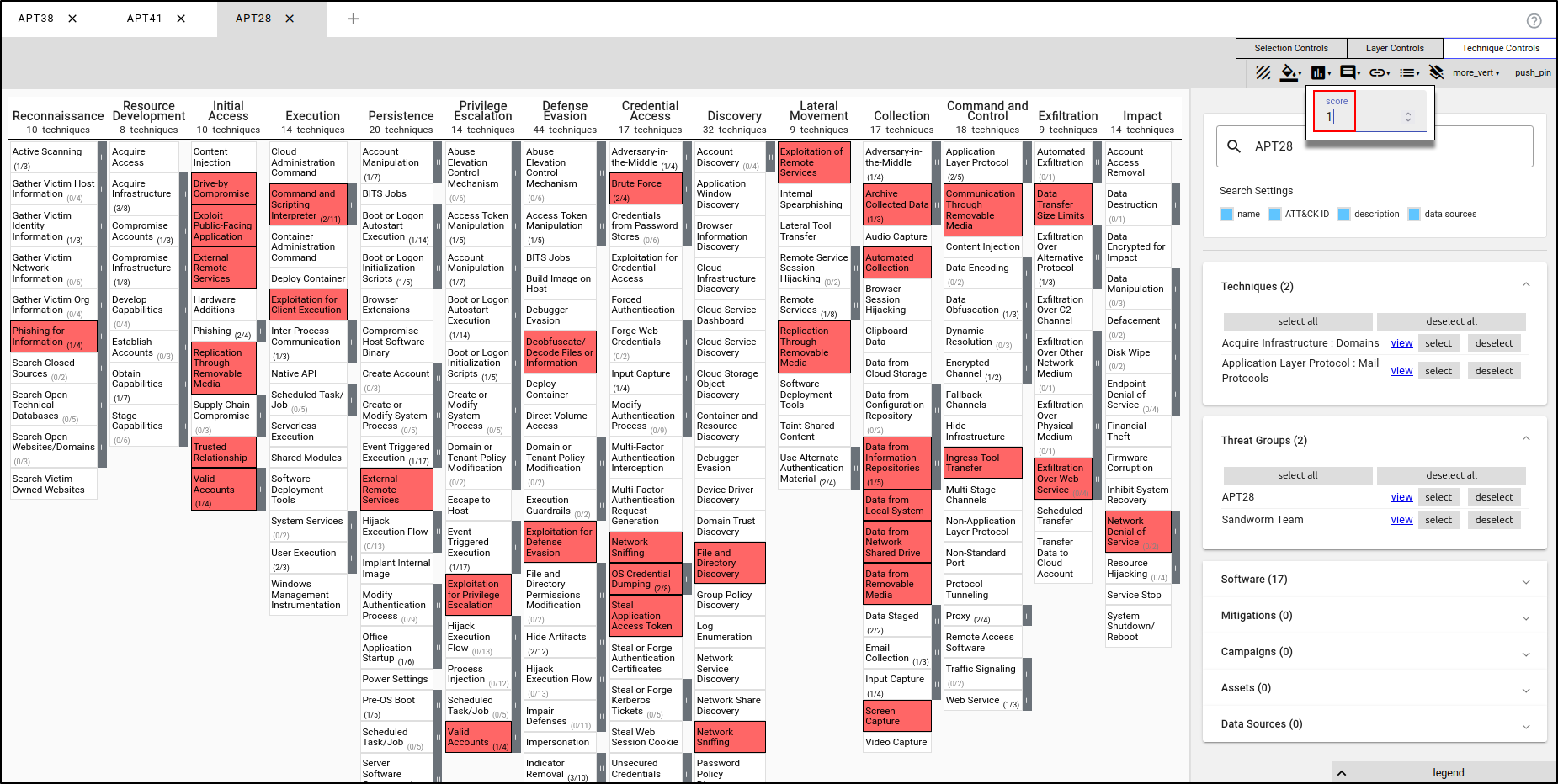
Close all layers. Create a new layer using Enterprise ATT&CK. Name the layer "APT38" and apply the TTPs used by APT38. In the Colour Setup in Layer Controls, set the Low value to 1 and the High value to 3. Set the Presets to red to green.
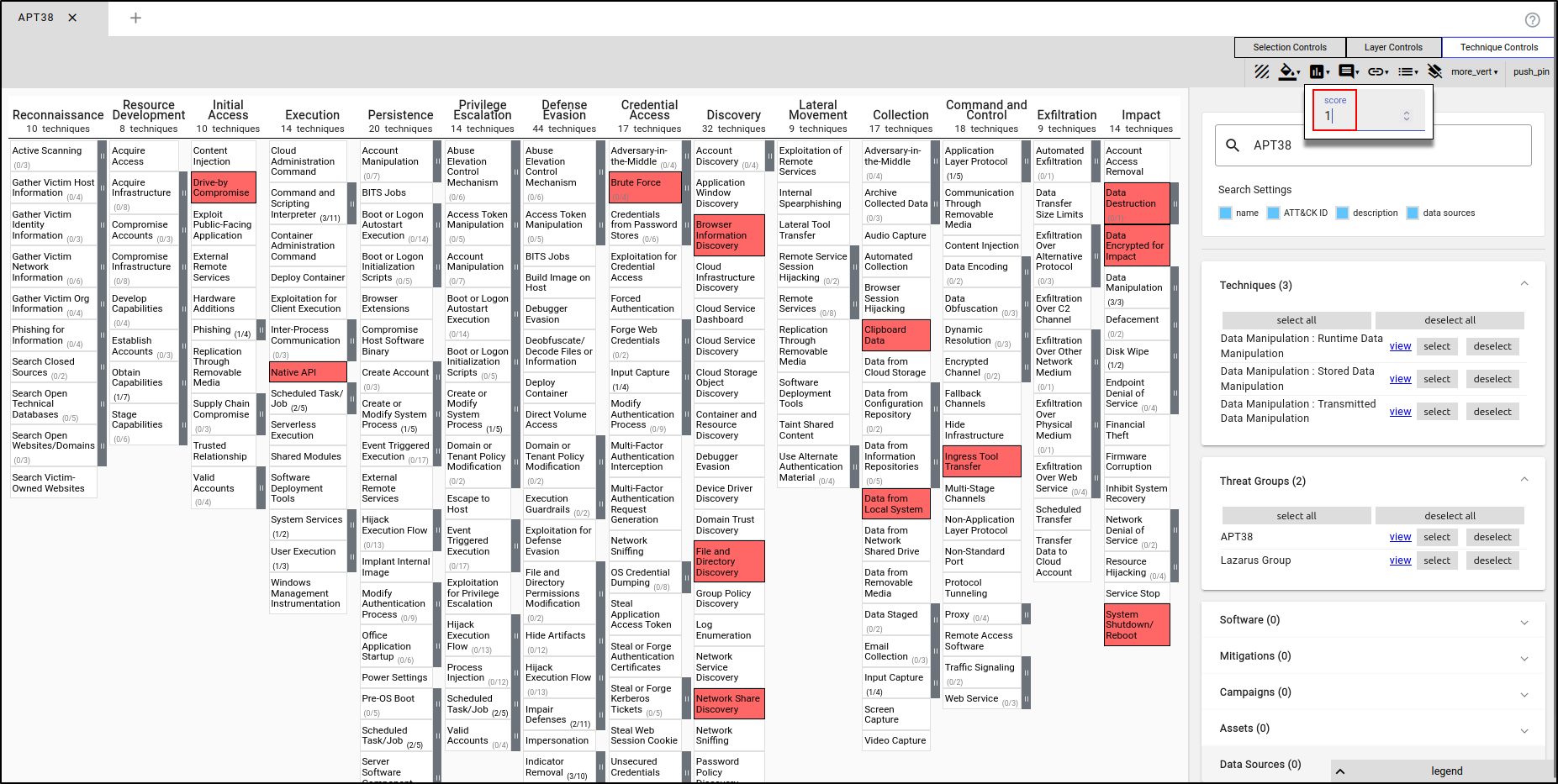
While the APT38’s TTPs are selected, assign the Score value of 1.
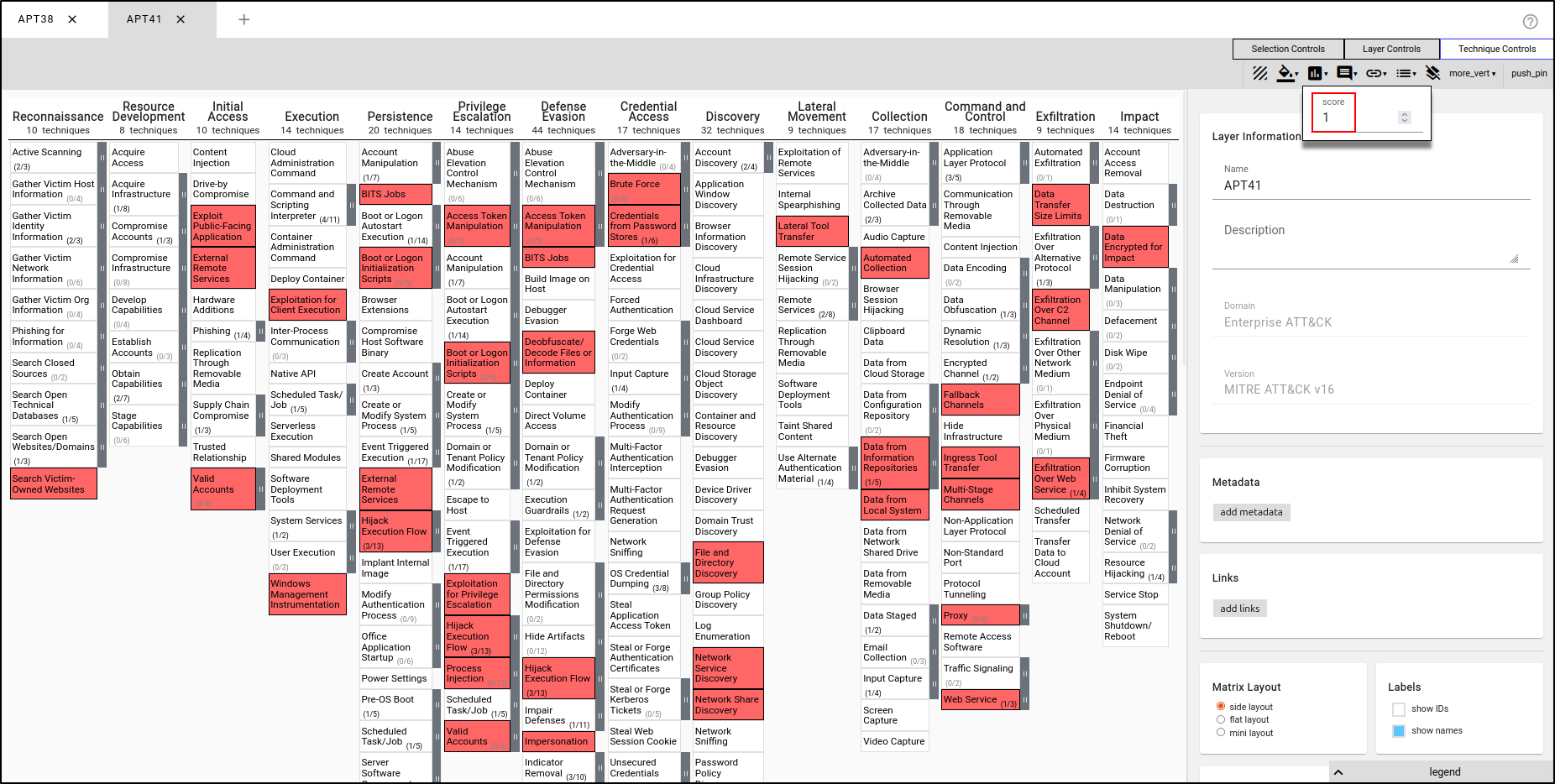
Create a second layer using Enterprise ATT&CK. Name the layer "APT41" and apply the TTPs used by APT41. Set the Low value to 1 and High value to 3. Set the Presets to red to green. Assign the Score value of 1.
Create a third layer using Enterprise ATT&CK. Name the layer "APT28" and apply the TTPs used by APT28. Set the Low value to 1 and High value to 3. Set the Presets to red to green. Assign the Score value of 1.
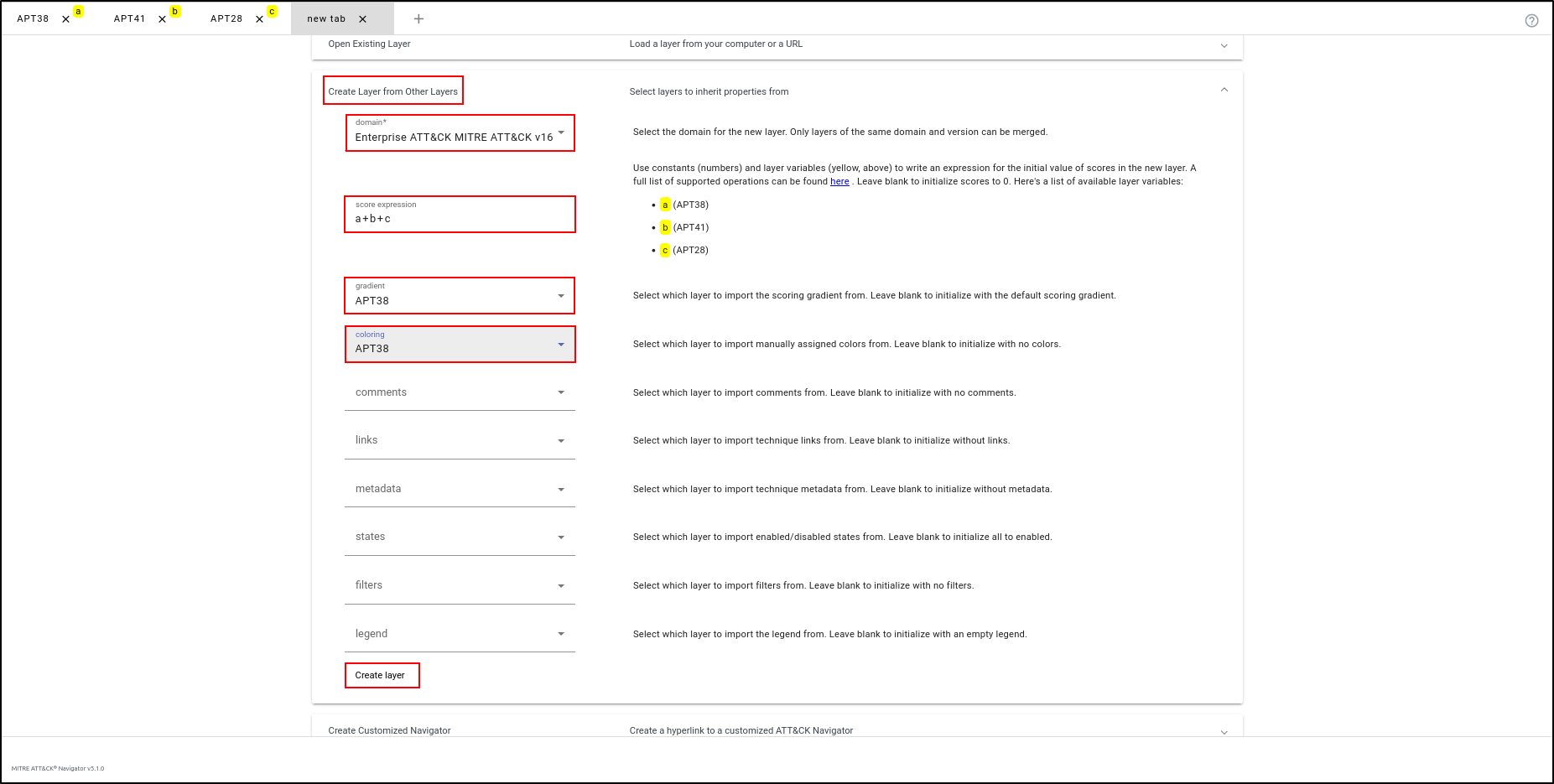
Create a new layer to combine the three layers. Select "Create Layer from Other Layers." For Domain, select "Enterprise ATT&CK MITRE ATT&CK v16." For Score Expression, enter "a+b+c," which will combine the scores from the three layers. For Gradient and Colouring, select "APT38" (noting that they all use the same gradient and colouring). Click "Create Layer."
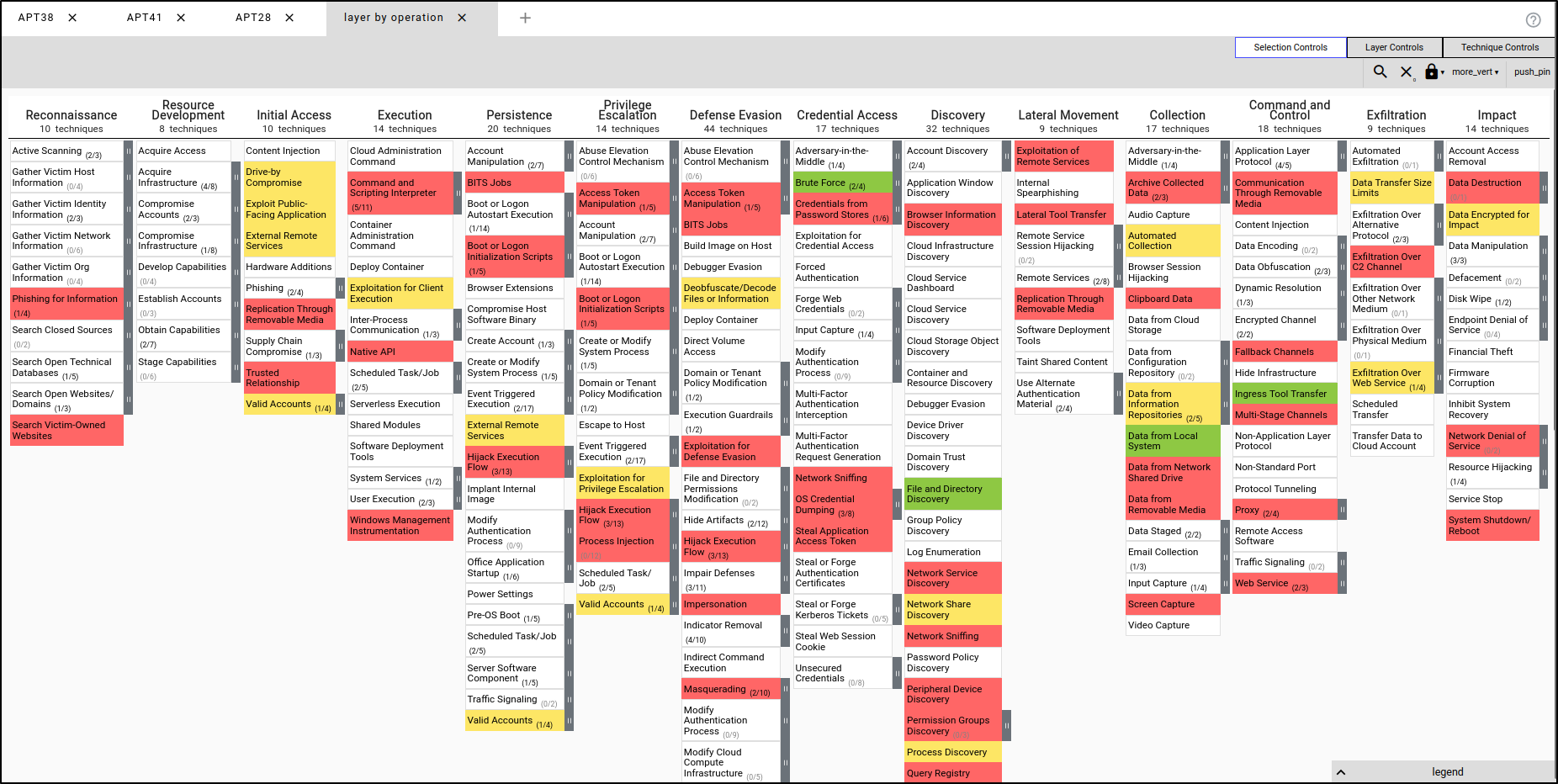
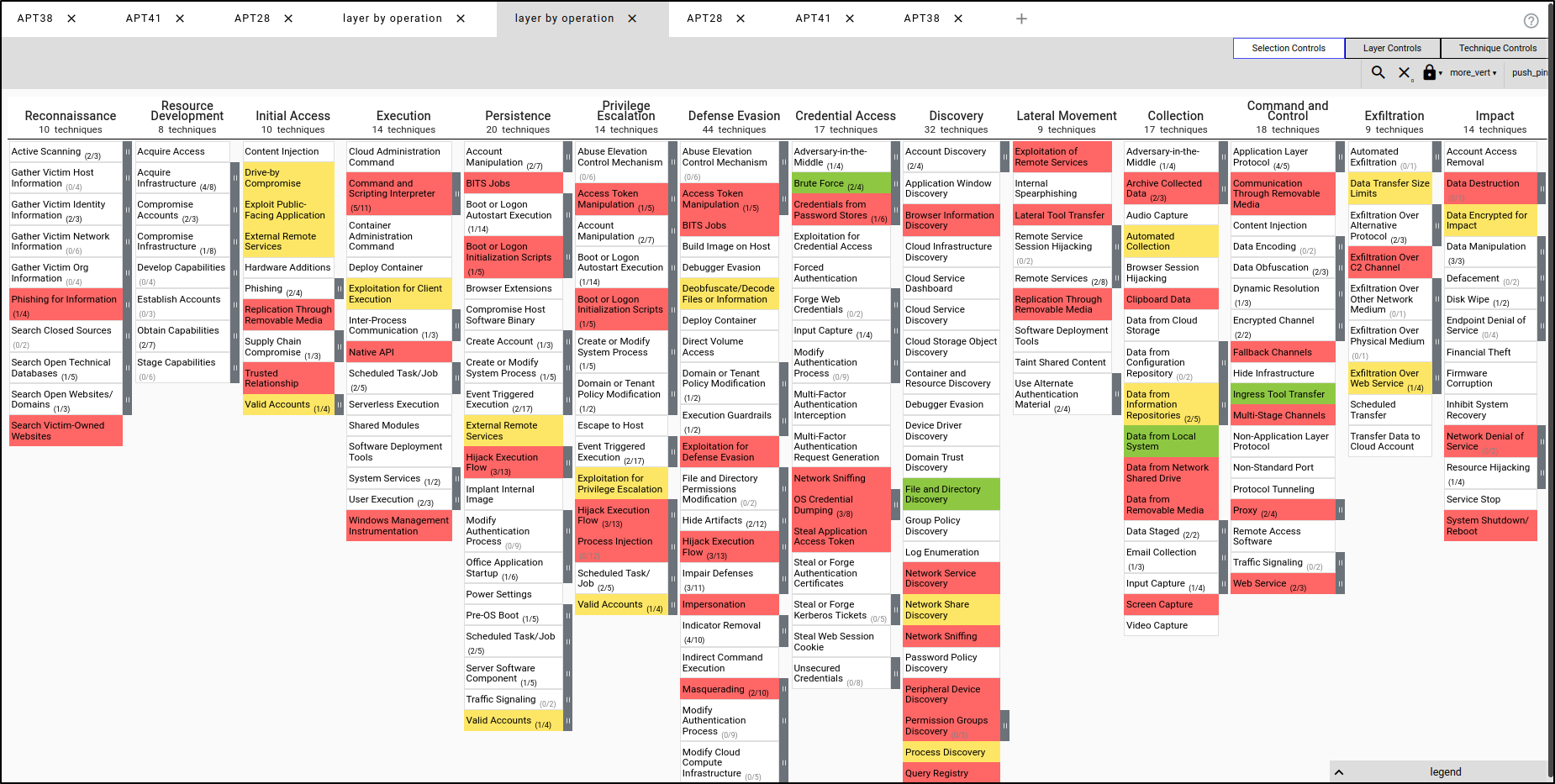
This generates a combined layer. Red indicates a score of 1, meaning that only one APT uses the TTPs in red. Yellow indicates a score of 2, meaning that two APTs use the TTPs in yellow. Green indicates a score of 3, meaning that all three APTs use the TTPs in green.
Exporting Layer
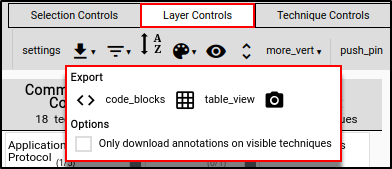
Within the Layer Controls tab, select "Export." Selecting Code Blocks will download the layer as a JSON file. Table View will export all layers to Excel, and the Camera icon will render the layer as an SVG.
Exporting Layer to Code Blocks
Within the Layer Controls tab, select "Export” then “Code Blocks.” This will automatically download the layer as JSON file.

Open a new tab and select Open Existing Layer. Select Upload from local and select the downloaded JSON file.
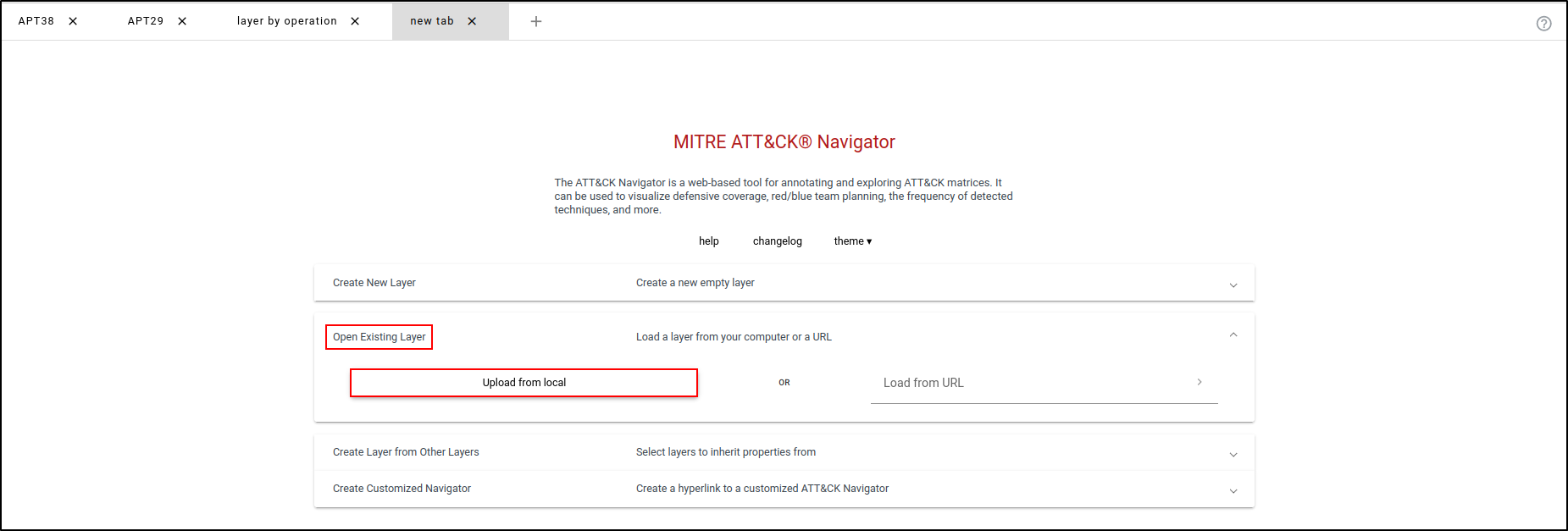
This loads the combined layer we created earlier.
Exporting Layer to Table View
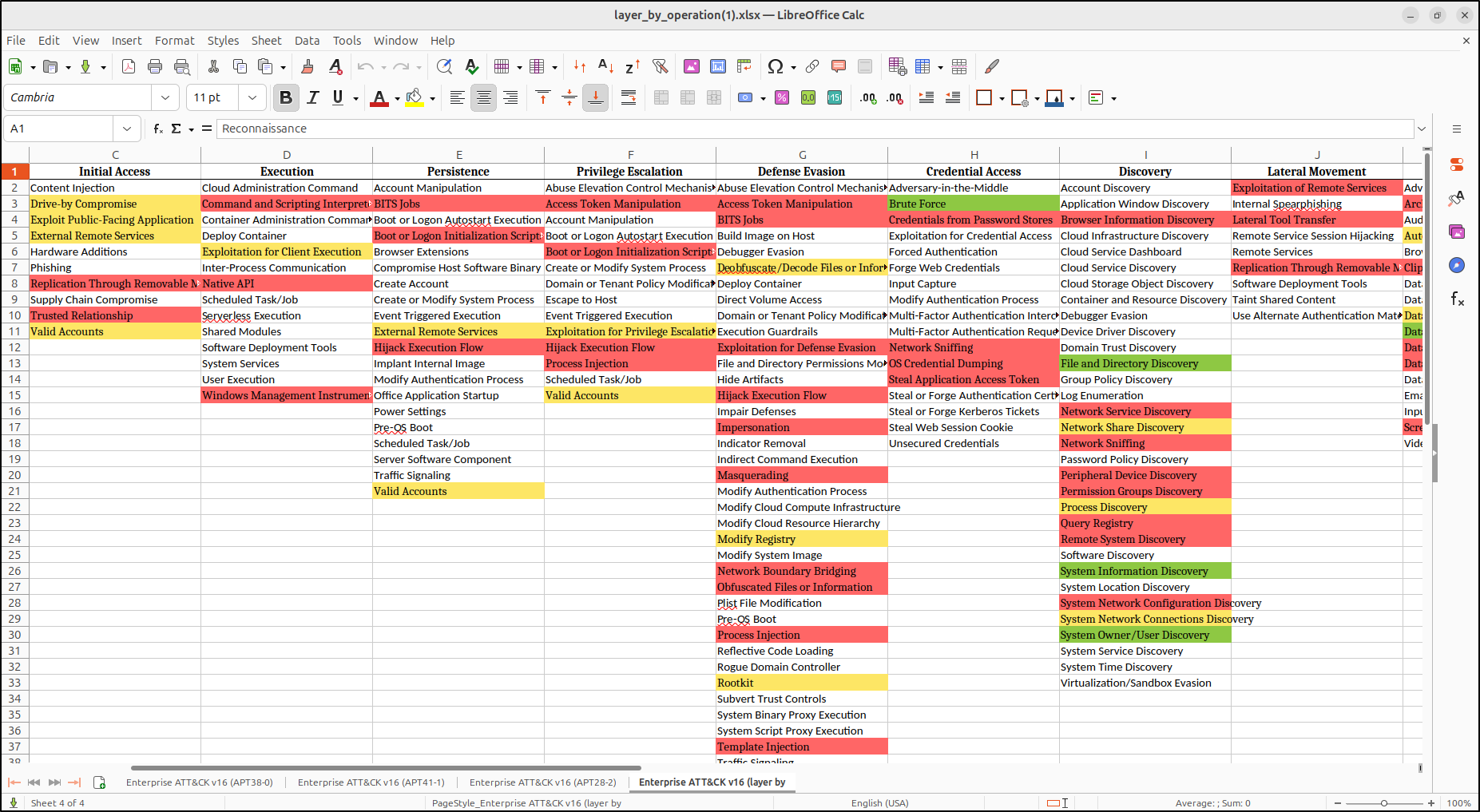
Within the Layer Controls tab, select "Export” then “Table View.” This will automatically download the layer as XLSX file.

Open the XLSX file in LibreOffice. This will display the three APT layers and the combined layer with the same colour rendering.
Exporting Layer to SVG
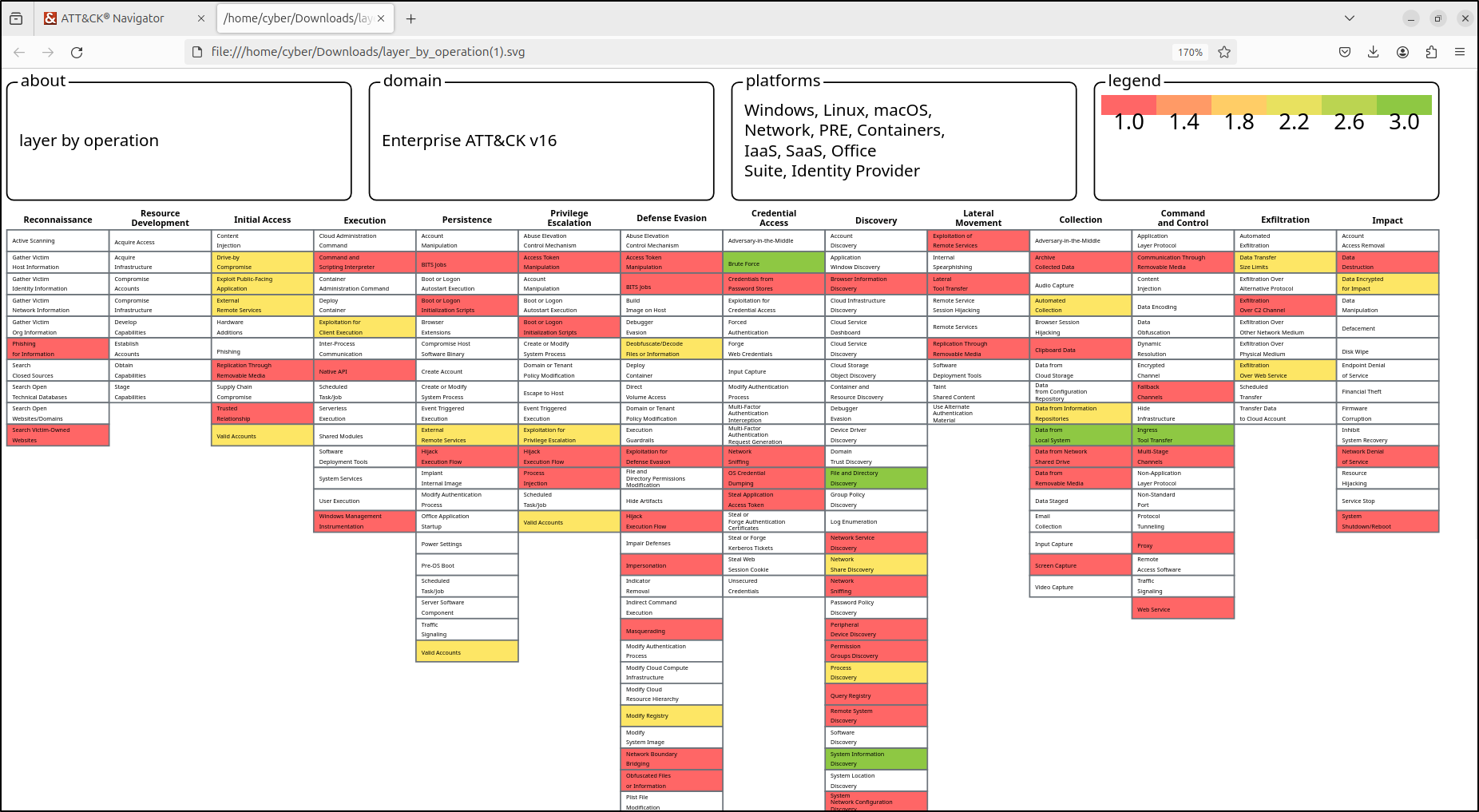
Within the Layer Controls tab, select "Export” then camera icon” This will render layer to Scalable Vector Graphics (SVG) file. An SVG file is a type of image that uses XML code to create two-dimensional graphics. Unlike PNG or JPG images, which can become blurry when resized, SVG images stay clear and sharp at any size. This makes them great for things like websites, logos, and diagrams. Click “Download SVG” button.
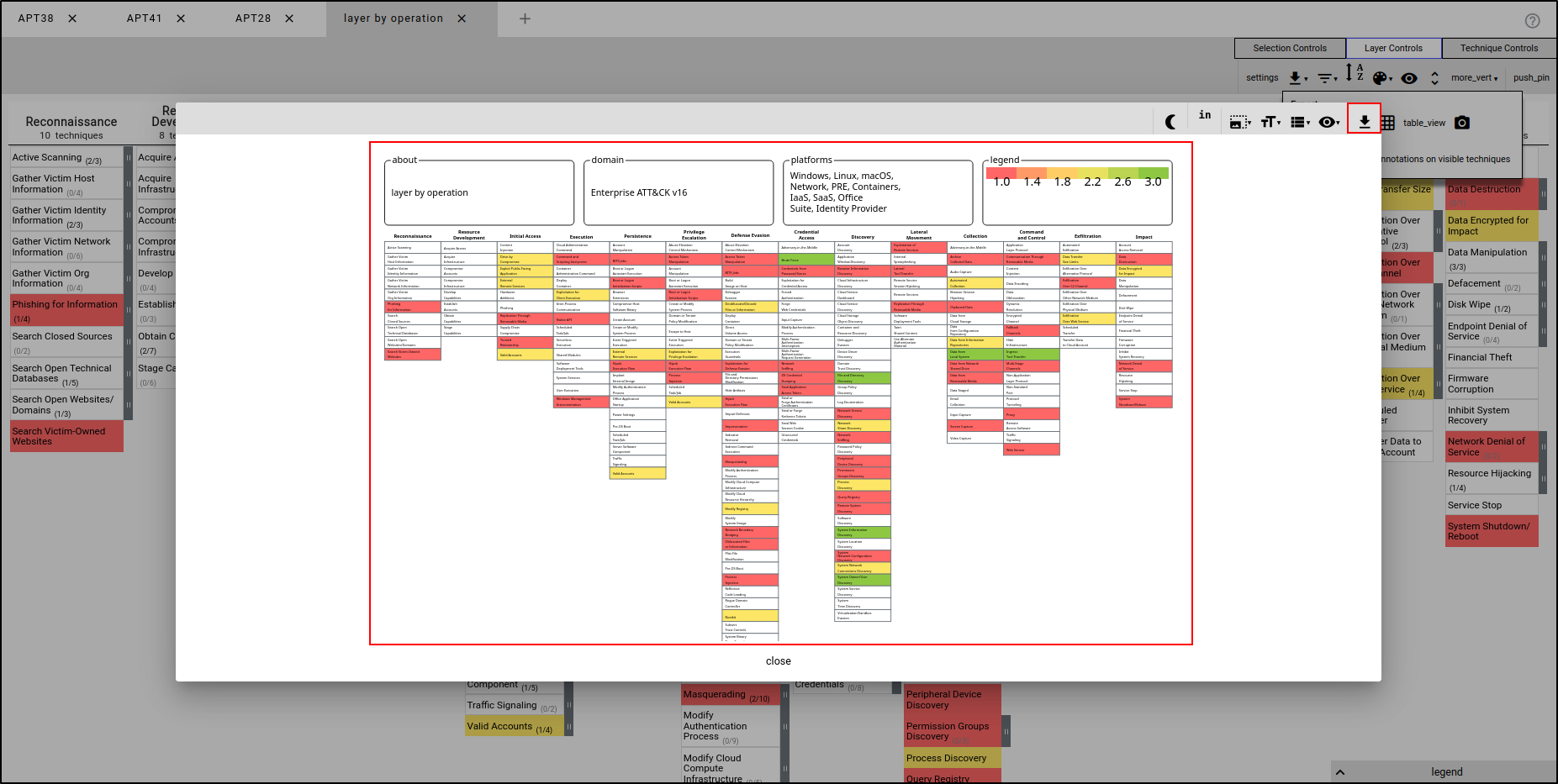
This will automatically download the SVG file.

Double-click the downloaded SVG file. This will open the SVG file in a new tab in your web browser.