Build and Score Navigator Layers
Create an Enterprise ATT&CK layer, select techniques manually or from a group, and apply a documented colour and scoring model for red-team or blue-team planning.
Scores need an explicit meaning
A score is not self-explanatory. Record whether it represents observed execution, visibility, detection, validation, priority, or another measure before sharing or comparing the layer.
Introduction to MITRE ATT&CK Navigator
Creating a New Layer
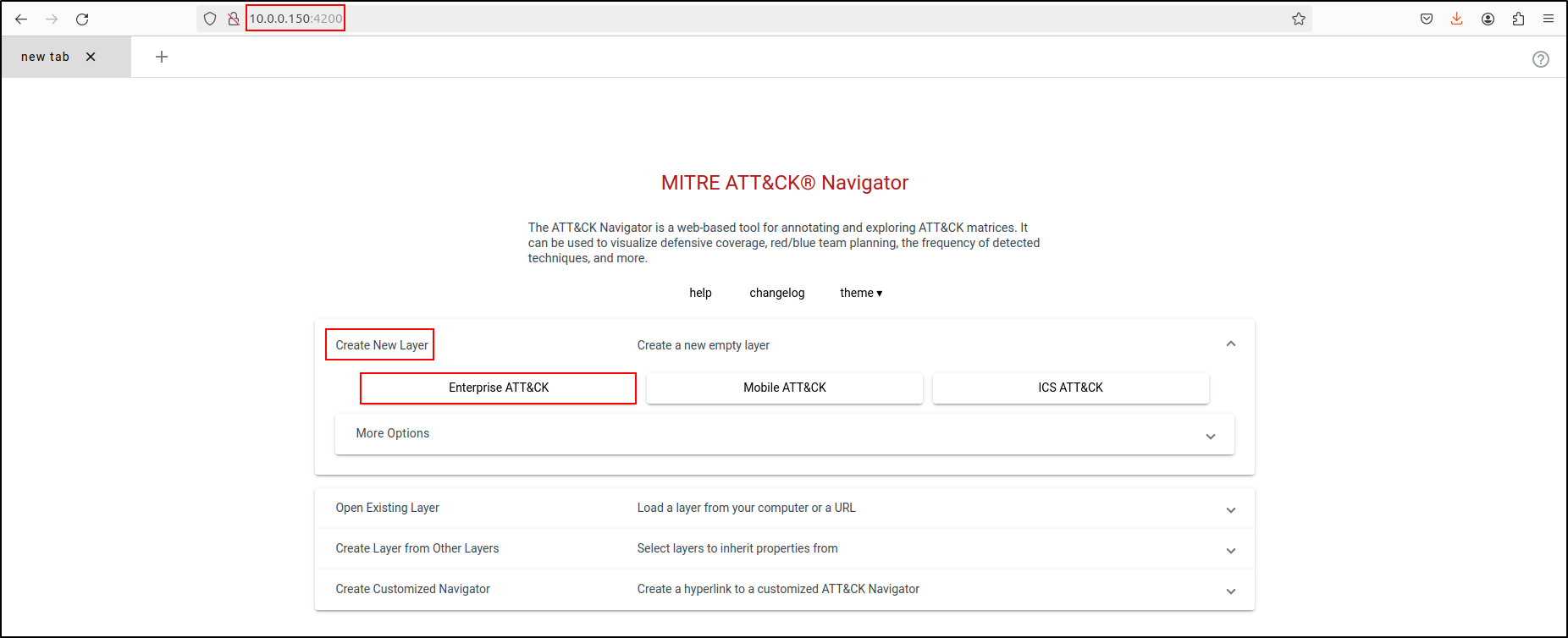
Navigate to the MITRE ATT&CK Navigator at http://<IP Address>:4200. Select Create New Layer, then choose Enterprise ATT&CK.
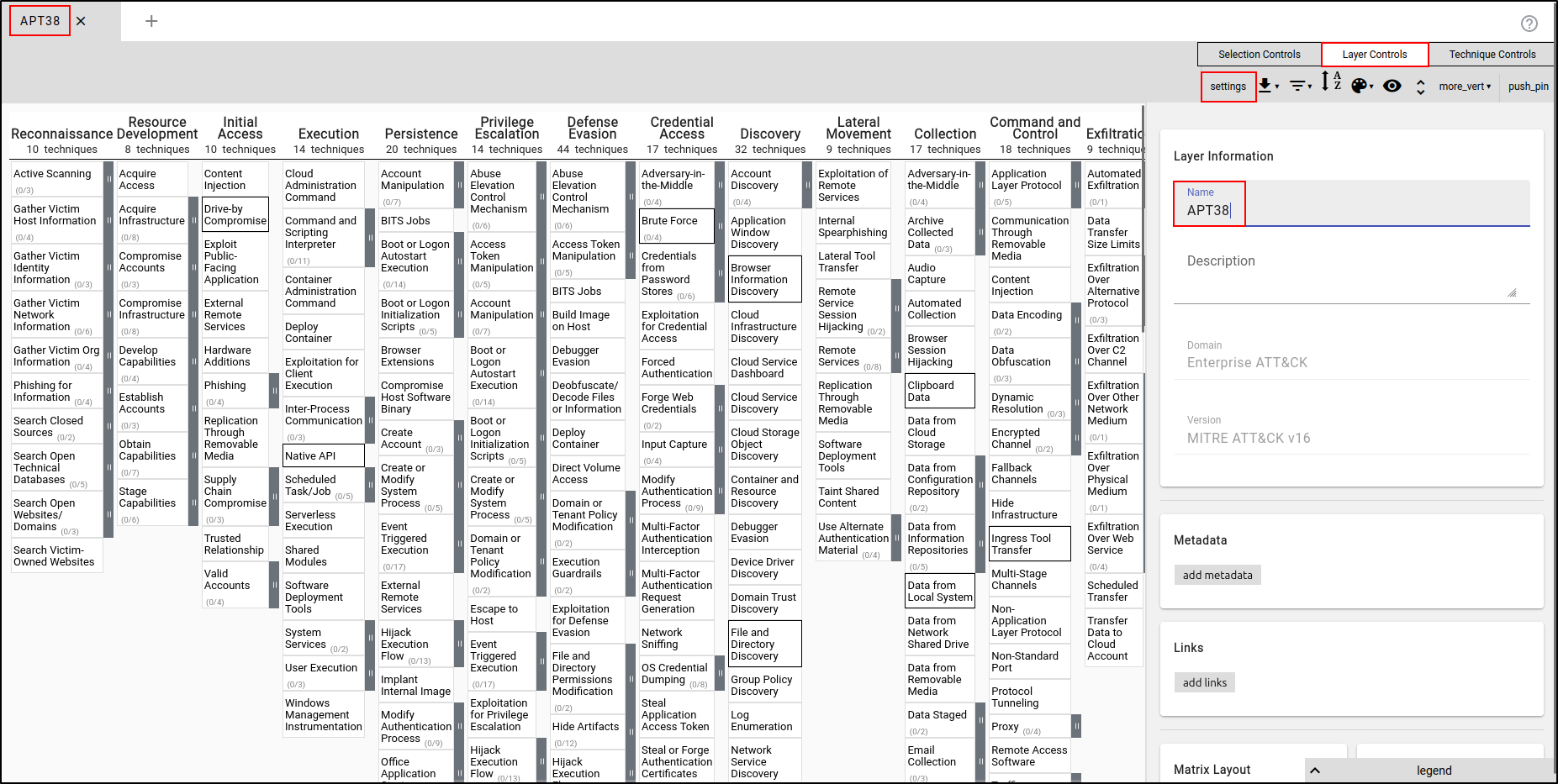
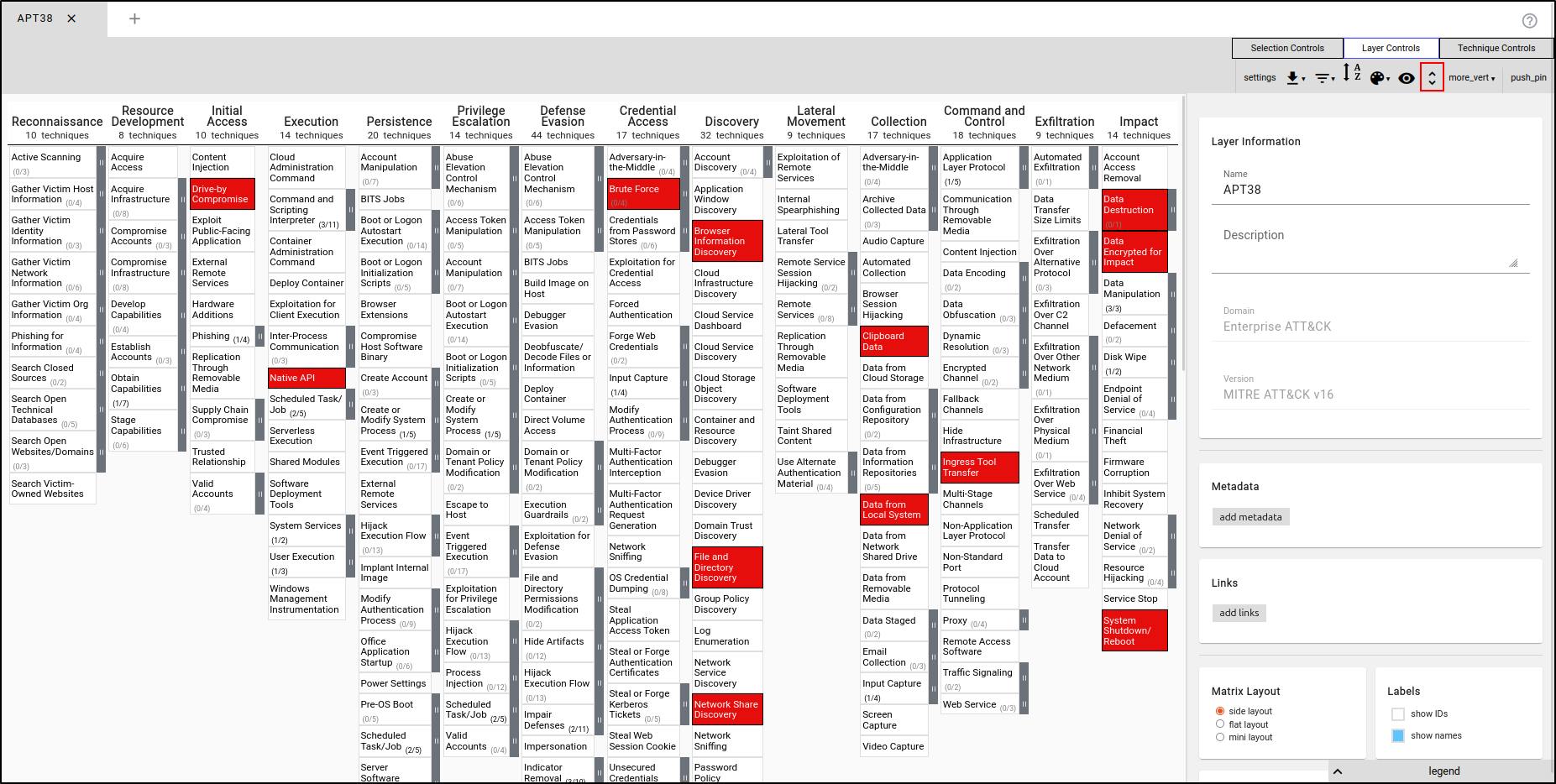
Select Layer Controls, then "Settings." Change the Layer name to "APT38.”
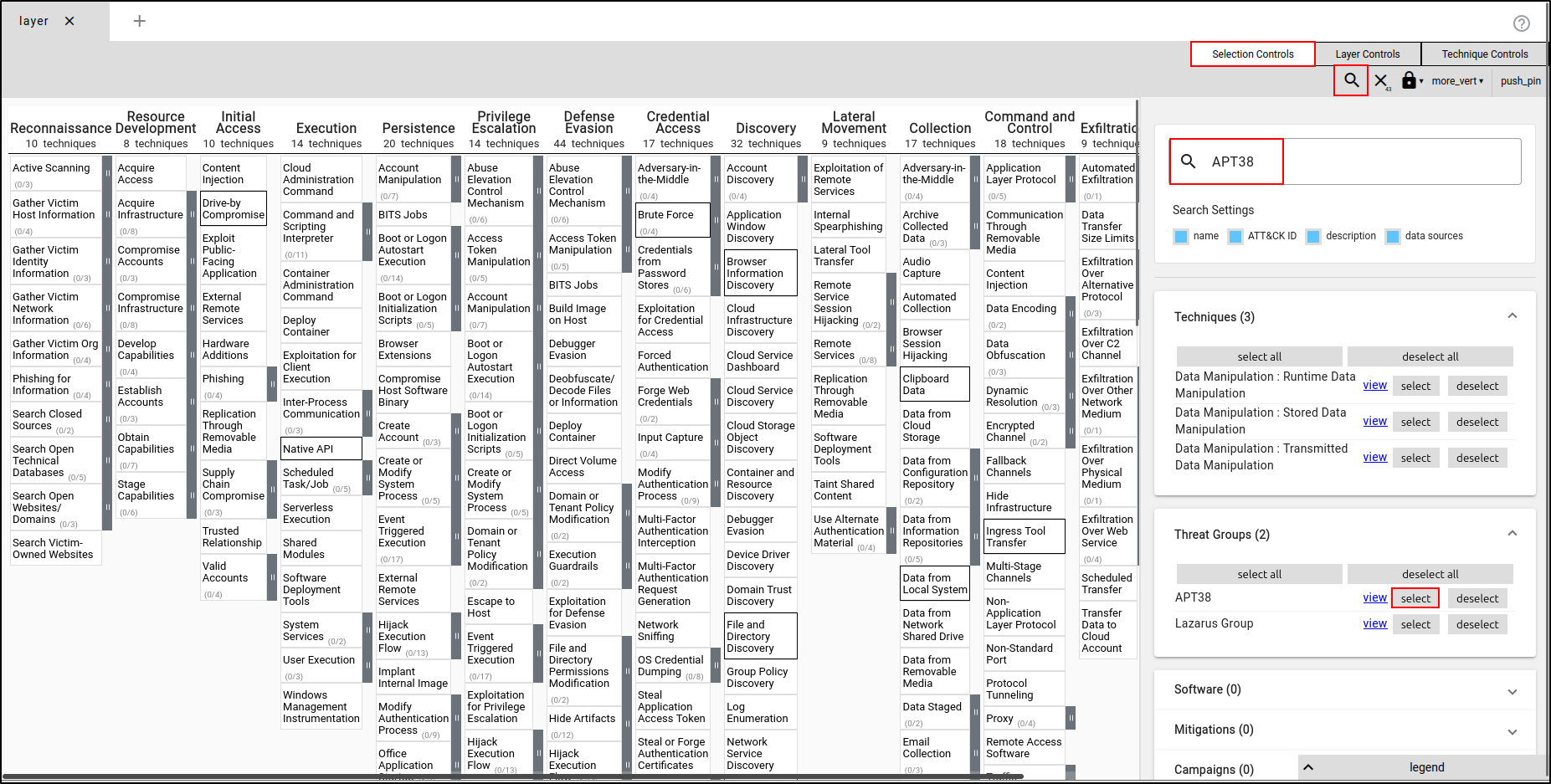
Click Selection Controls, then select "Search & Multiselect." Search for APT38. Expand the Threat Groups section and click Select next to APT38. This will automatically select the techniques used by APT38.
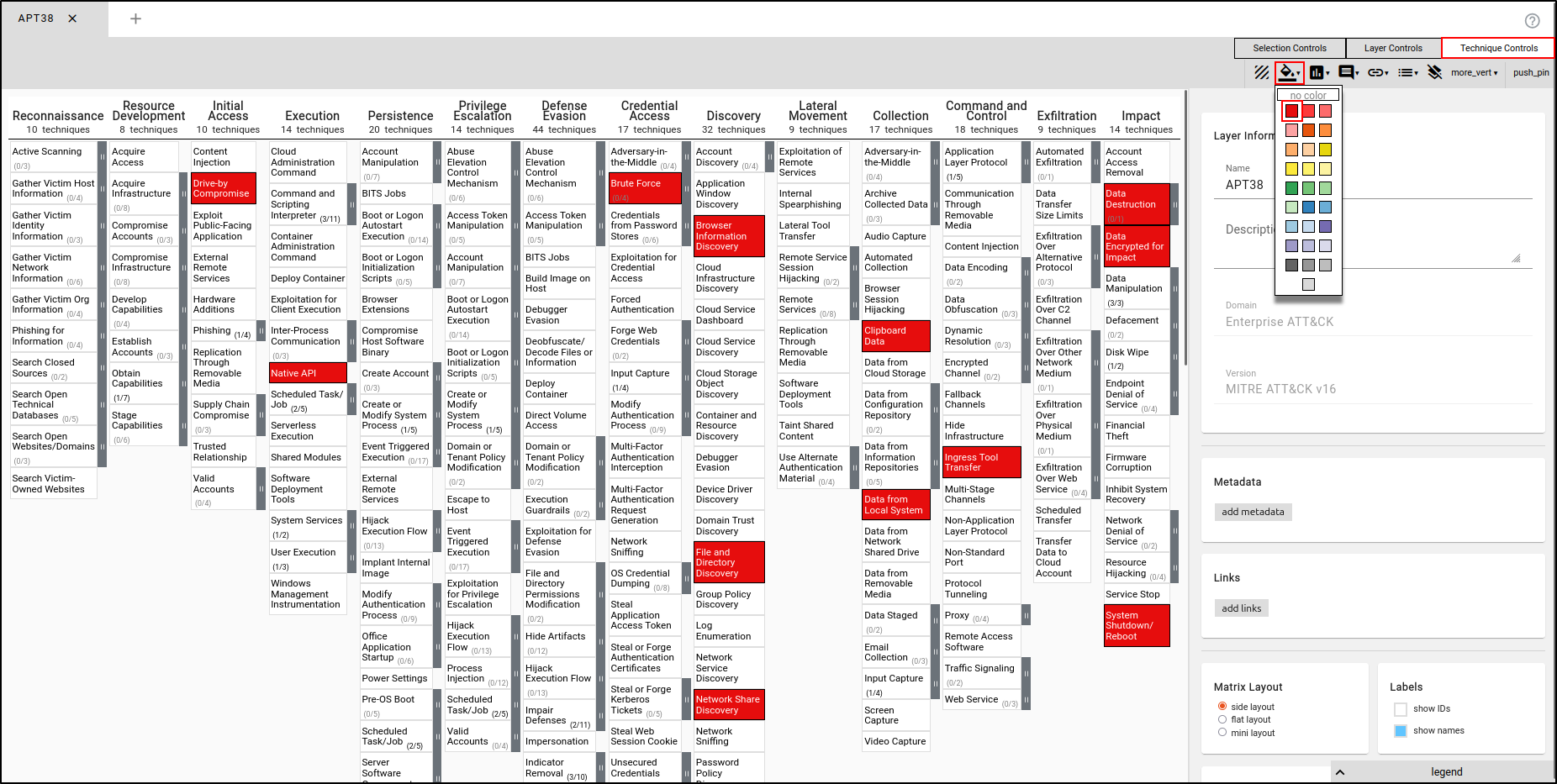
Manually Setting Colours
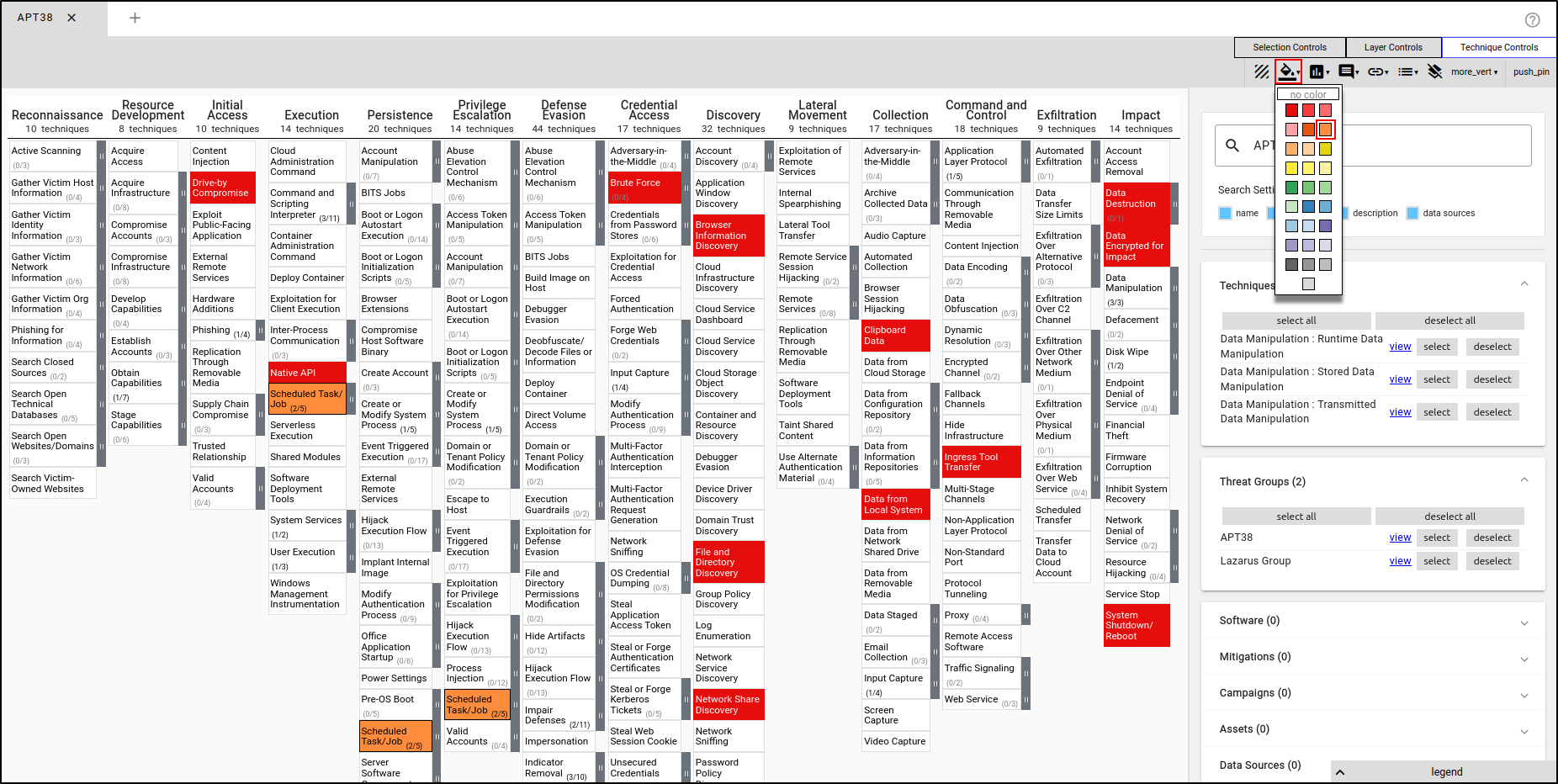
Navigate to Technique Controls, select 'Background Colour,' and choose a colour that is easily identifiable (e.g., red).
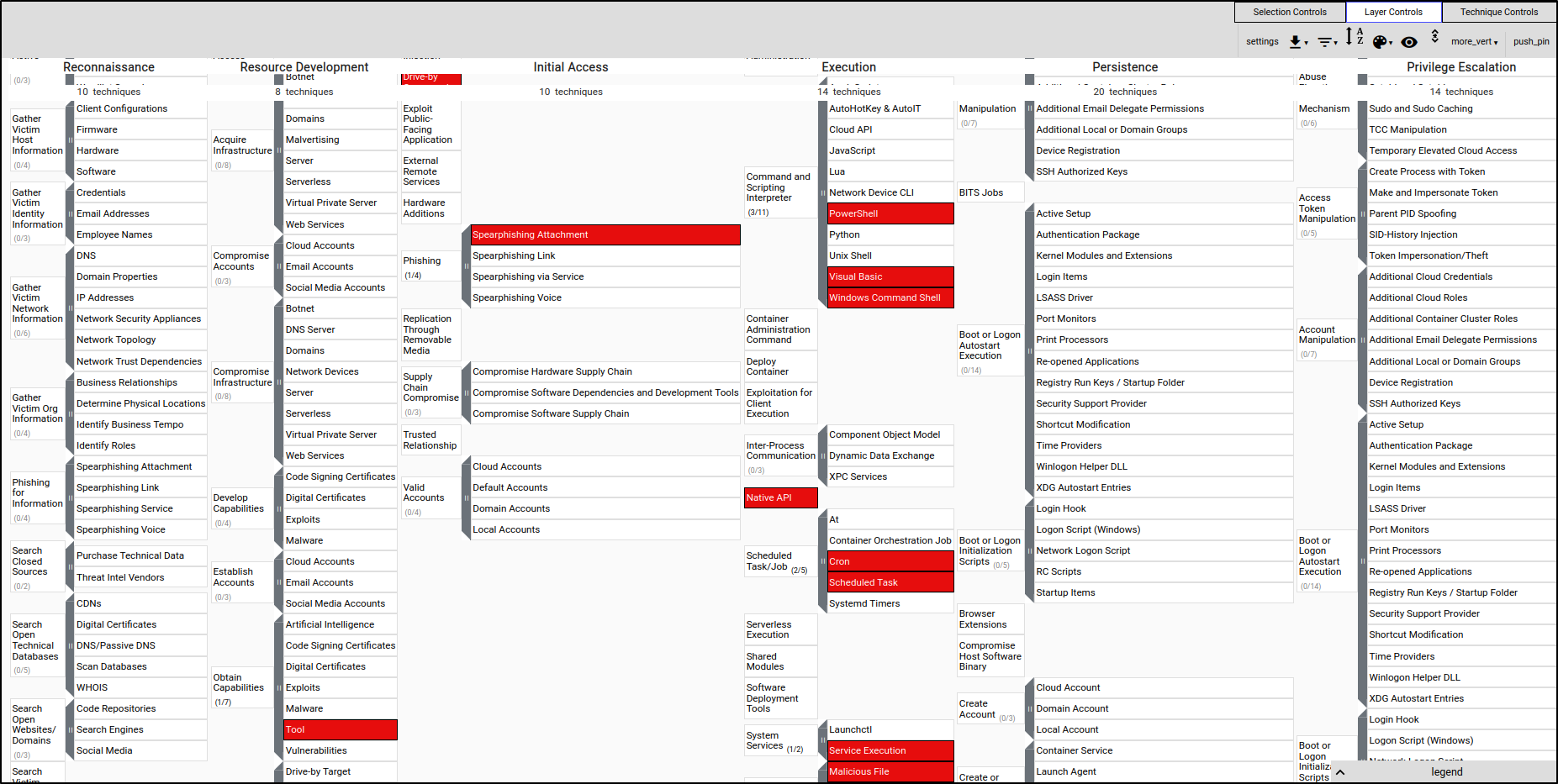
To expand the subtechniques, navigate to Layer Controls, then click "Expand Subtechniques.”
Manually Adding a TTP
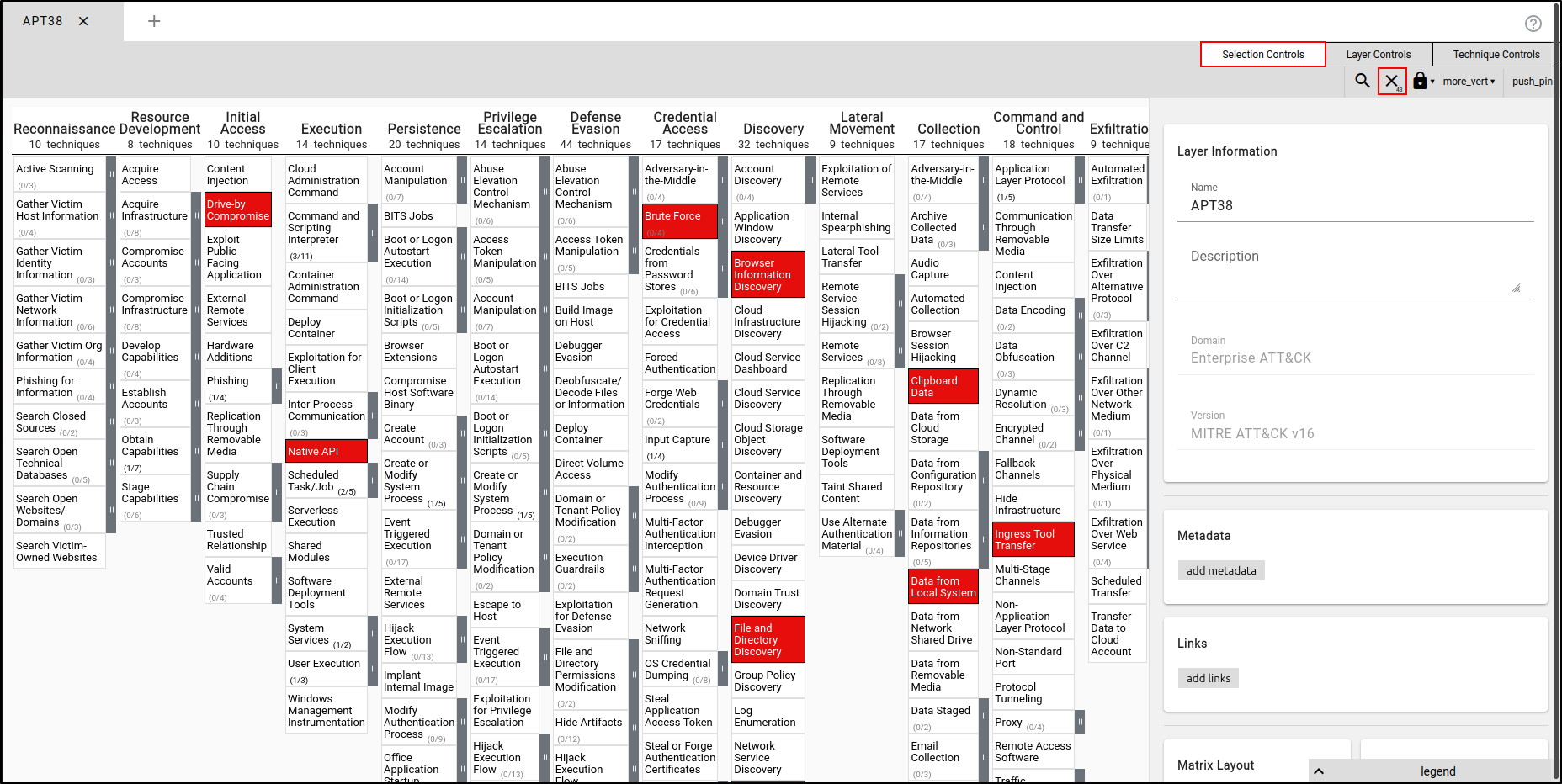
First navigate to Selection Controls and click “deselect 43 techniques.”
To manually add a Tactic, Technique, or Procedure (TTP), click on the TTP (e.g., Scheduled Task/Job) and select the orange colour.
Creating an Adversary Profile
Create a new layer using Enterprise ATT&CK. Name the layer the Red Haast Eagle (or name of your own choice).
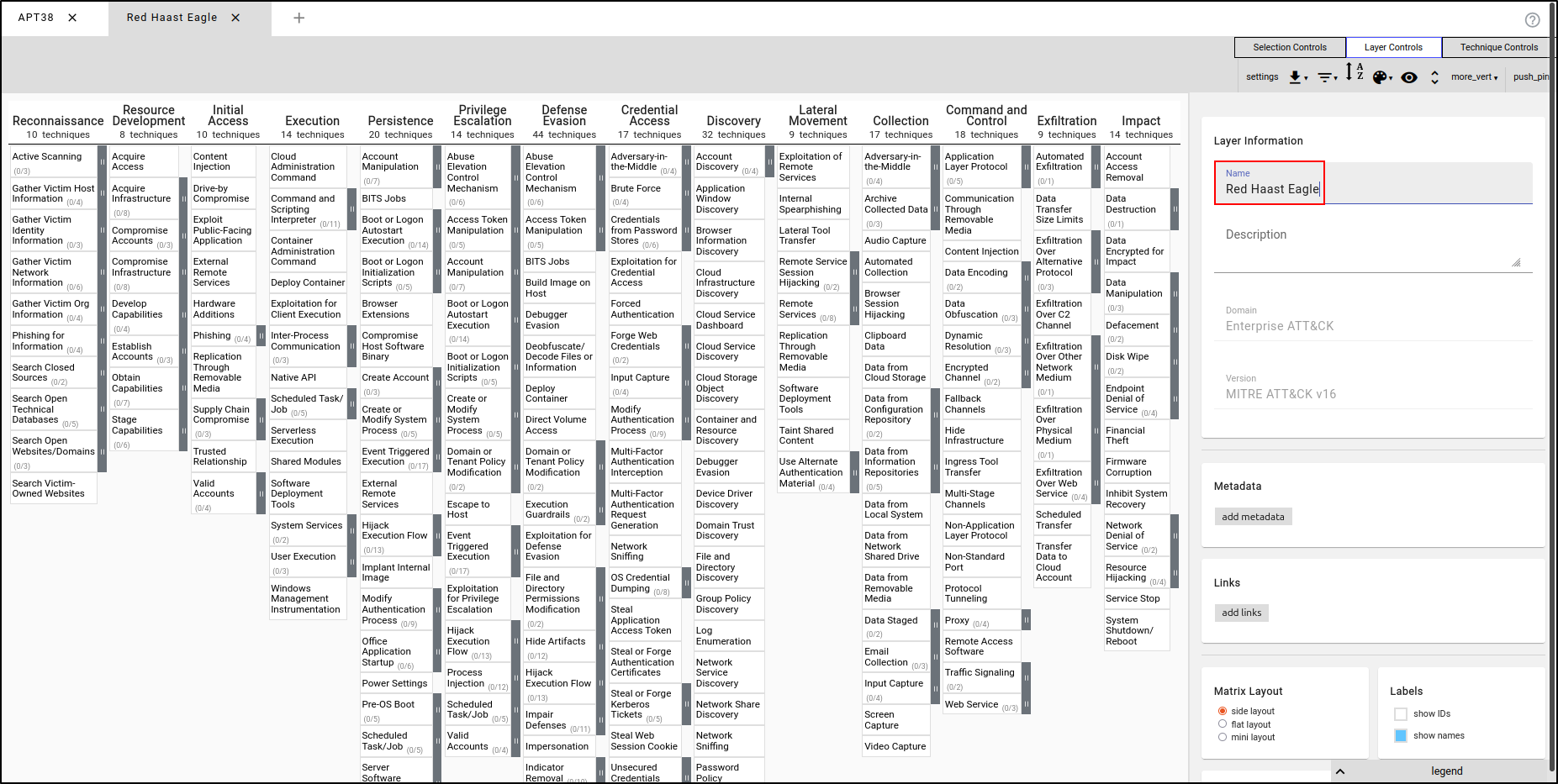
While holding down the control key, select multiple TTP’s that your adversary profile will be using. You can copy the TTPs shown in the image, or choose your own.
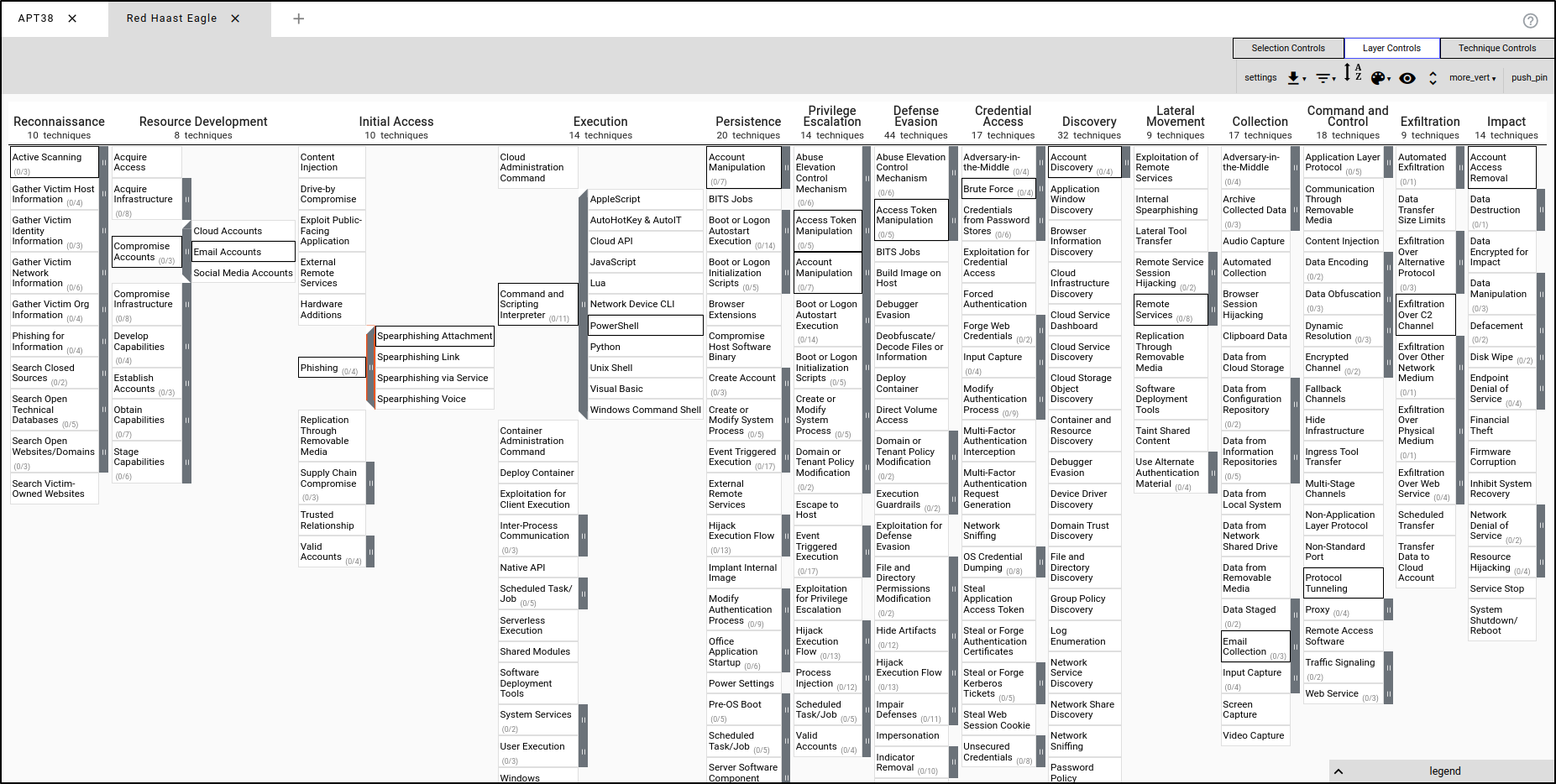
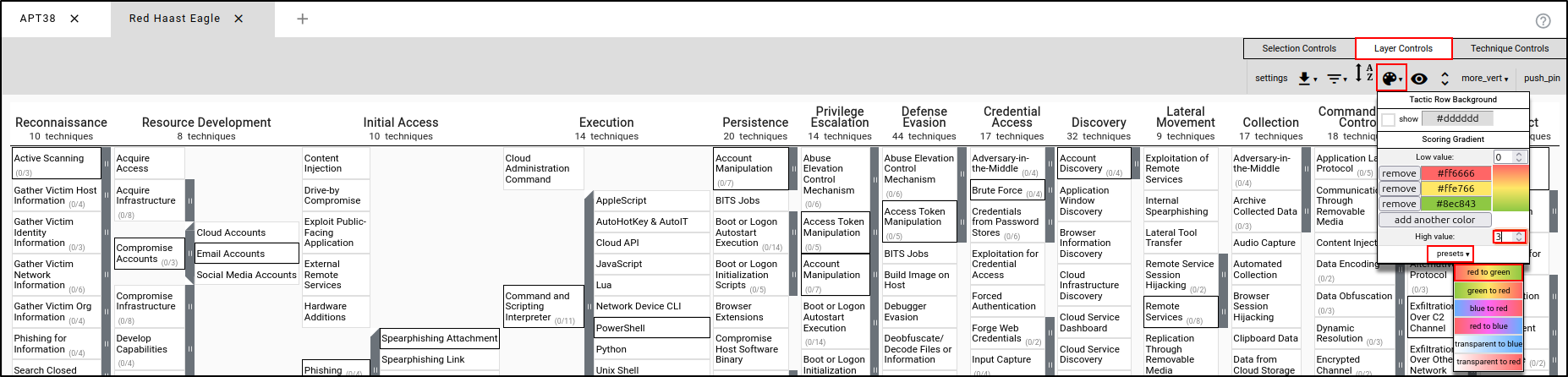
While the TTPs are selected, navigate to Layer Controls, then Colour Setup. Set High Value to 3 and leave presets set to red to green.
Setting Colours by Assigning Scores (Red Team)
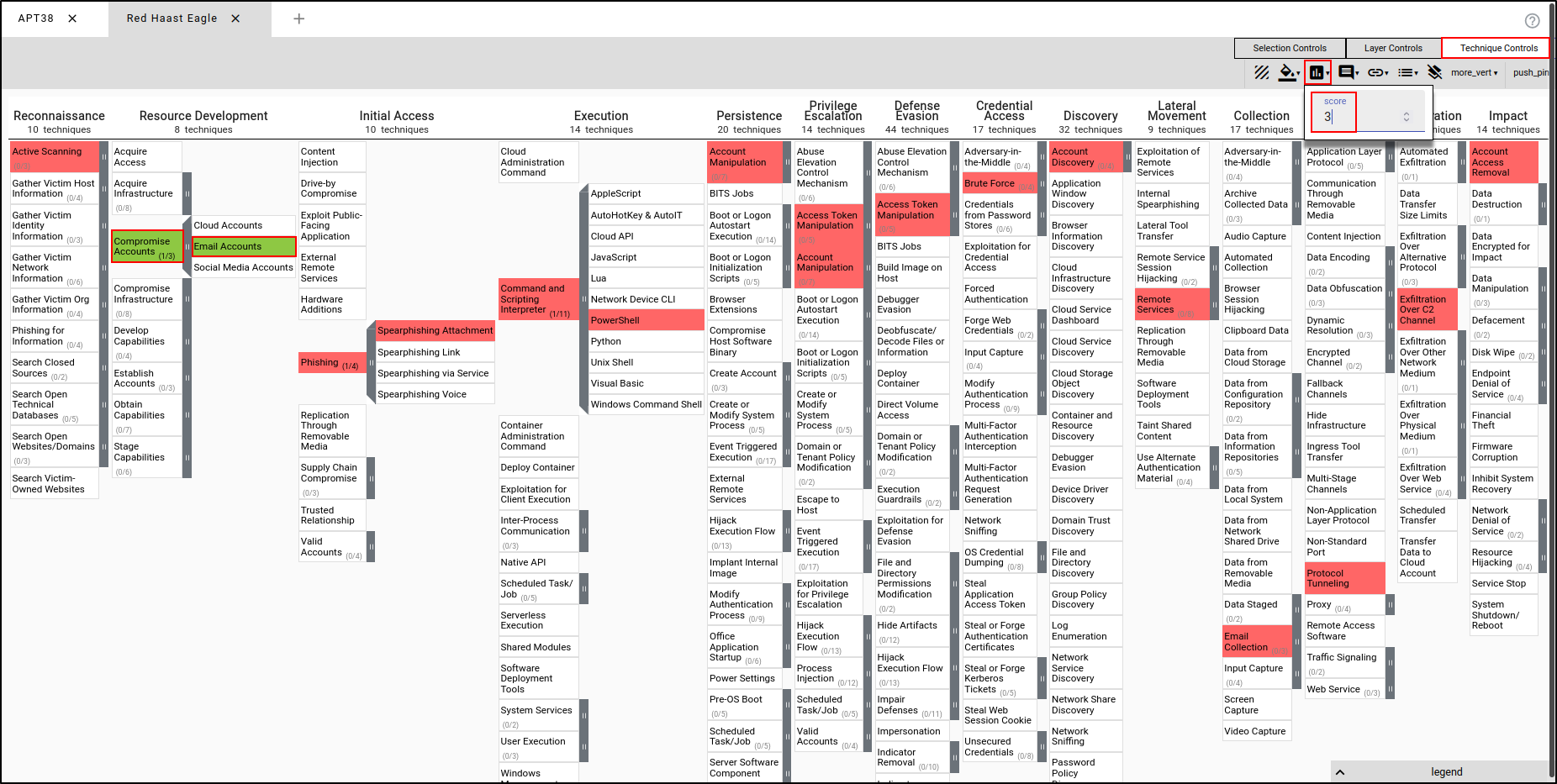
Navigate to Technique Controls, then Scores. Set the Score value to 0. The score can be defined and interpreted in many different ways. In this scenario, we will be looking at scores from the red team’s planning perspective. A score of 0 means the red team wasn’t successful in executing the following TTPs (shown in red), whereas a score of 3 means the red team was successful in executing the TTPs.
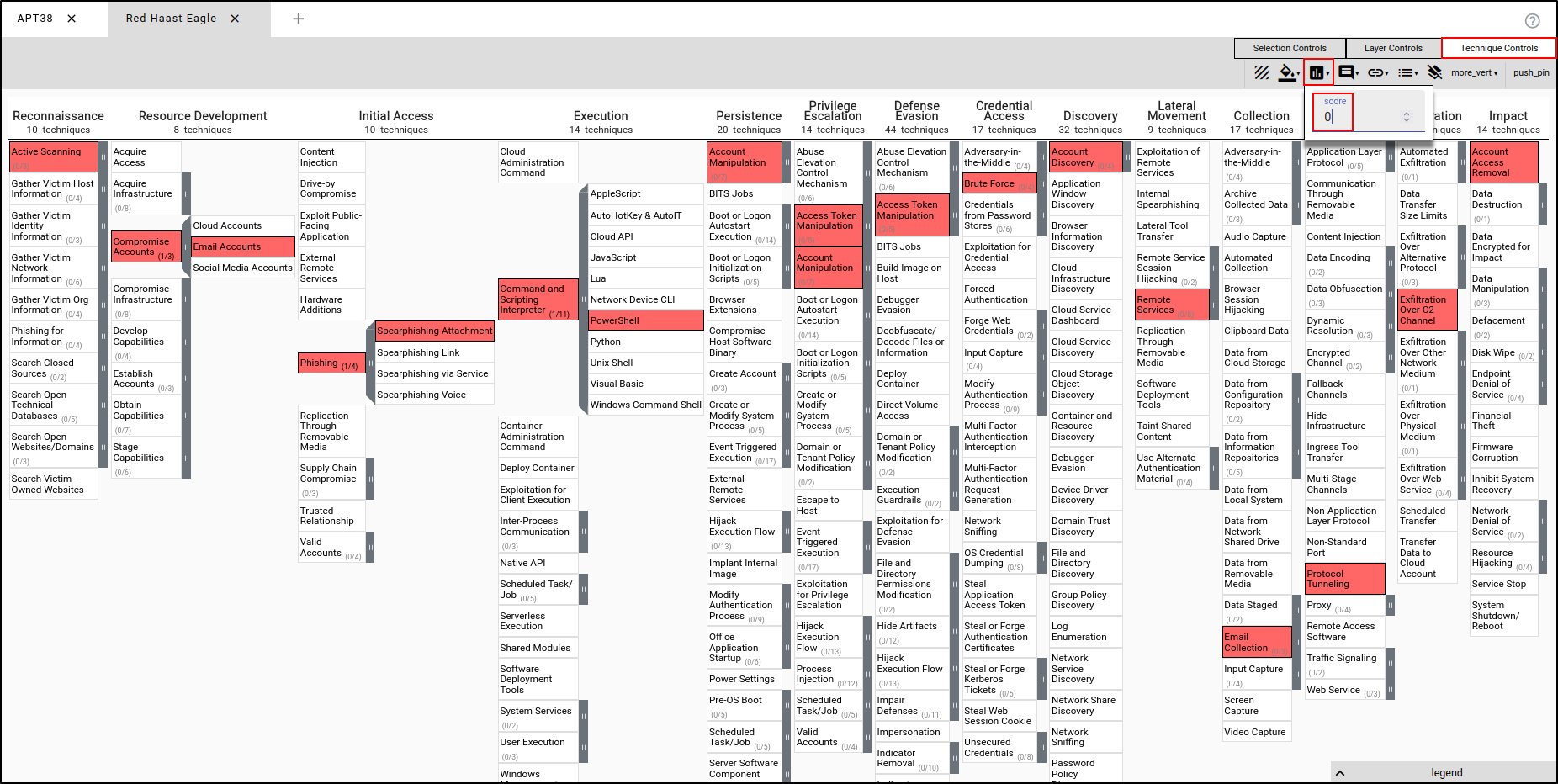
Select Compromise Accounts and Email Accounts, and set the score to 3. This means the red team was successful in executing the TTPs. This will render these specific TTPs in green.
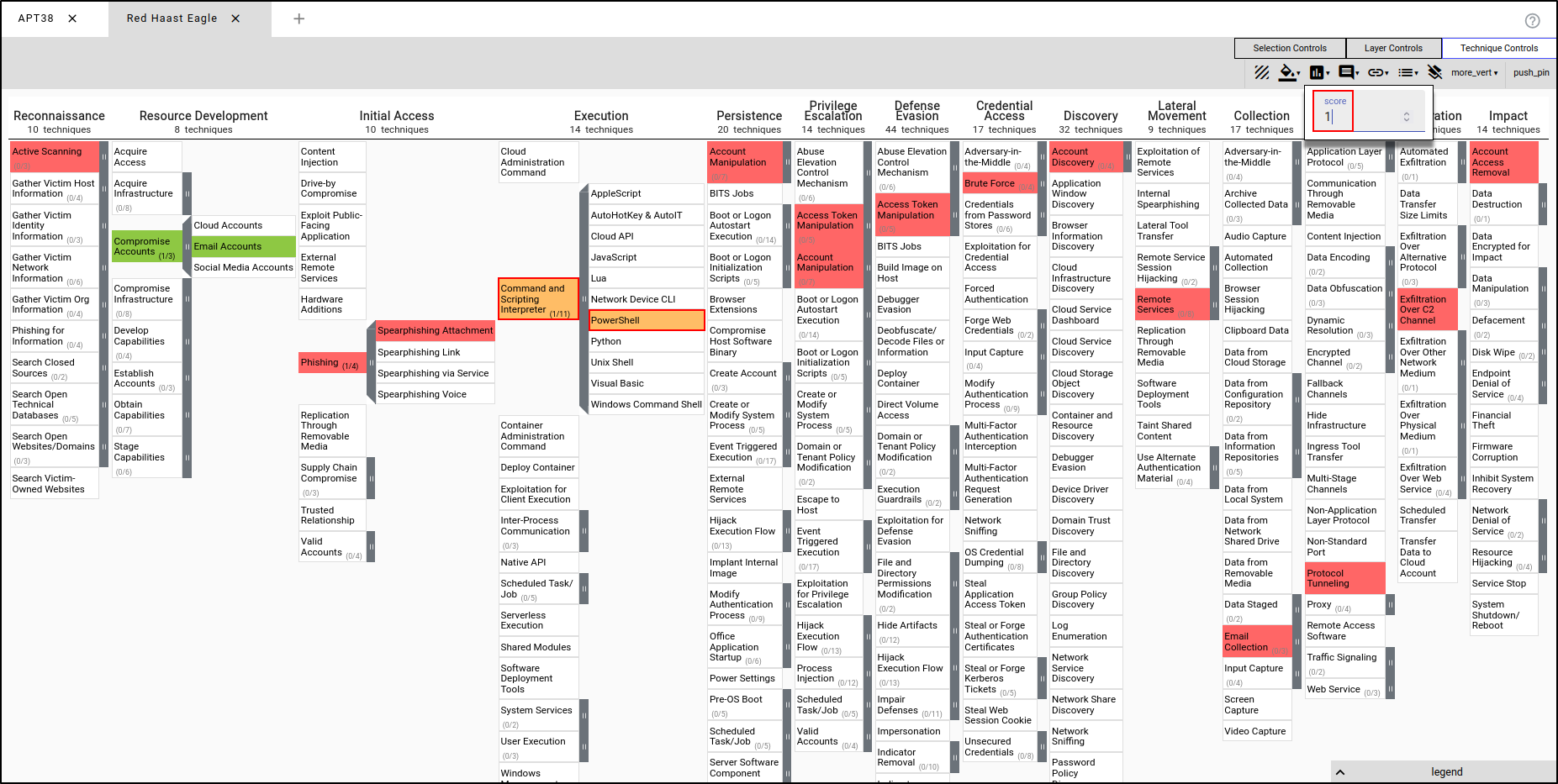
Select Command and Scripting Interpreter and PowerShell and assign the score of 1. This implies the TTPs were executed and there were technical errors or TTPs were partially executed. This will render the TTPs in orange.
Setting Colours by Assigning Scores (Blue Team)
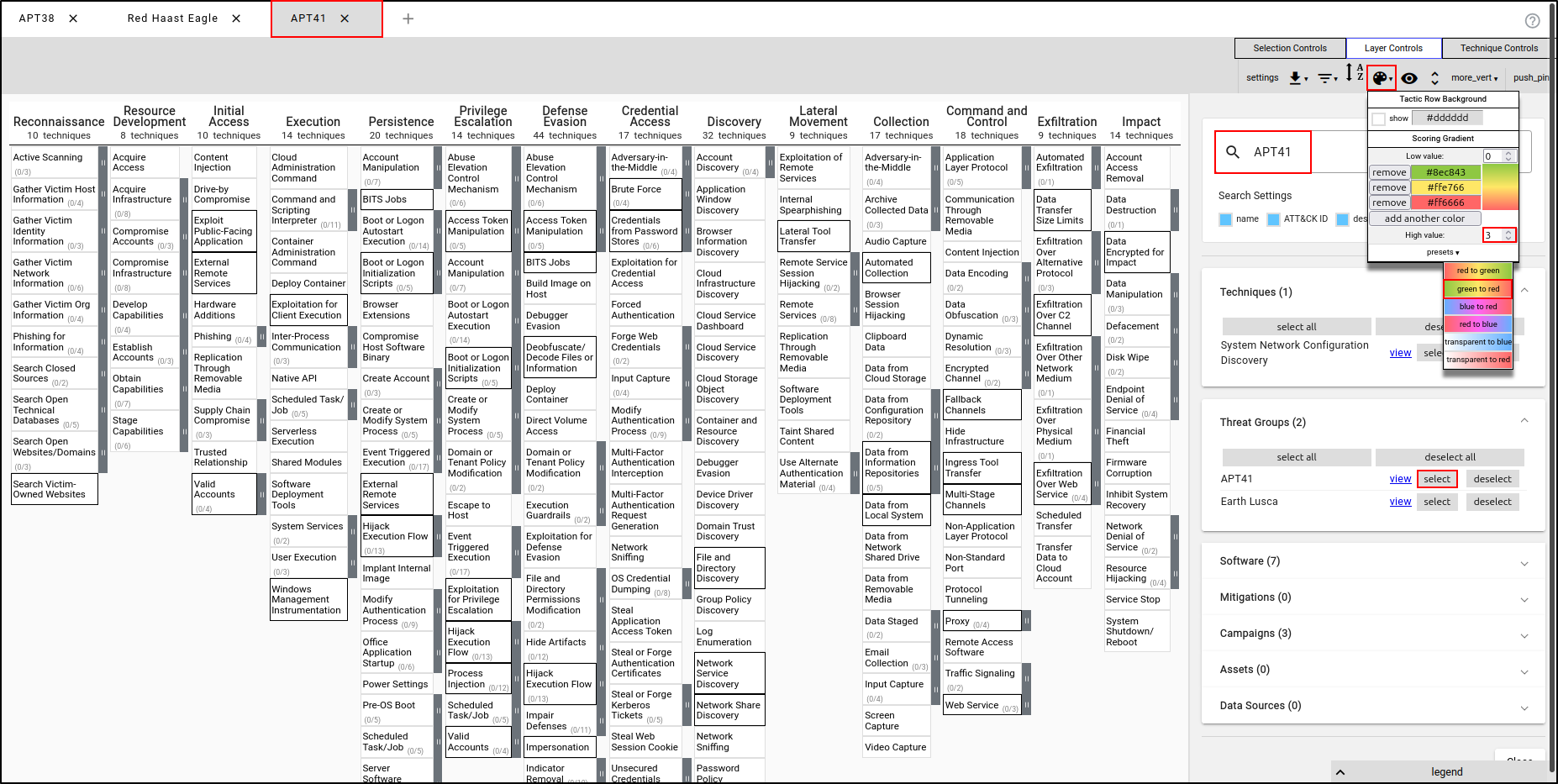
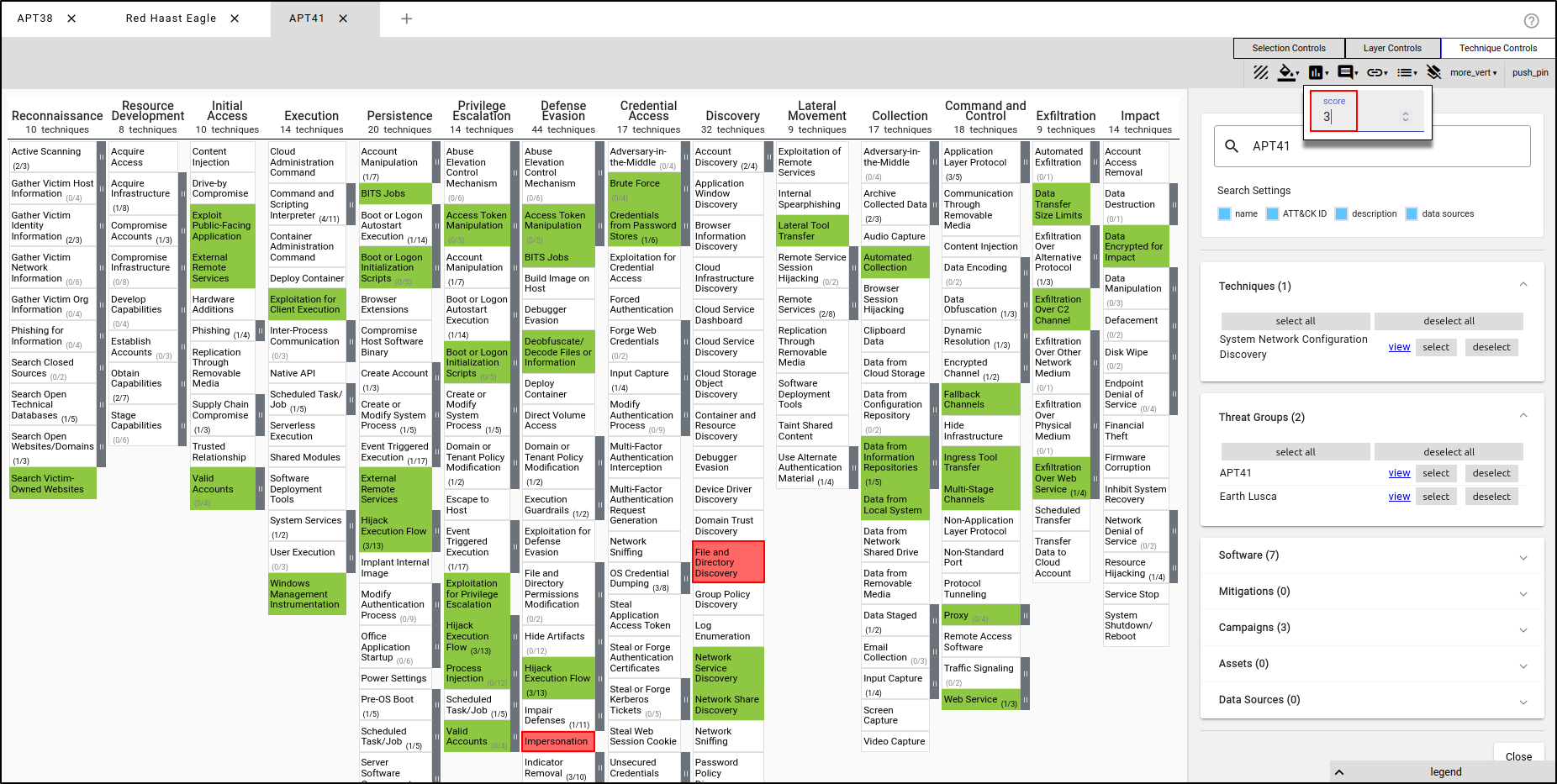
Create a new layer using Enterprise ATT&CK. Name the layer "APT41" and apply the TTPs used by APT41. Navigate to Layer Controls, then Colour Setup. Set High Value to 3 and set Presets to green to red.
With APT41’s TTPs selected, assign a score of 0. This will render the TTPs in green, indicating that the red team was not successful in executing these TTPs.
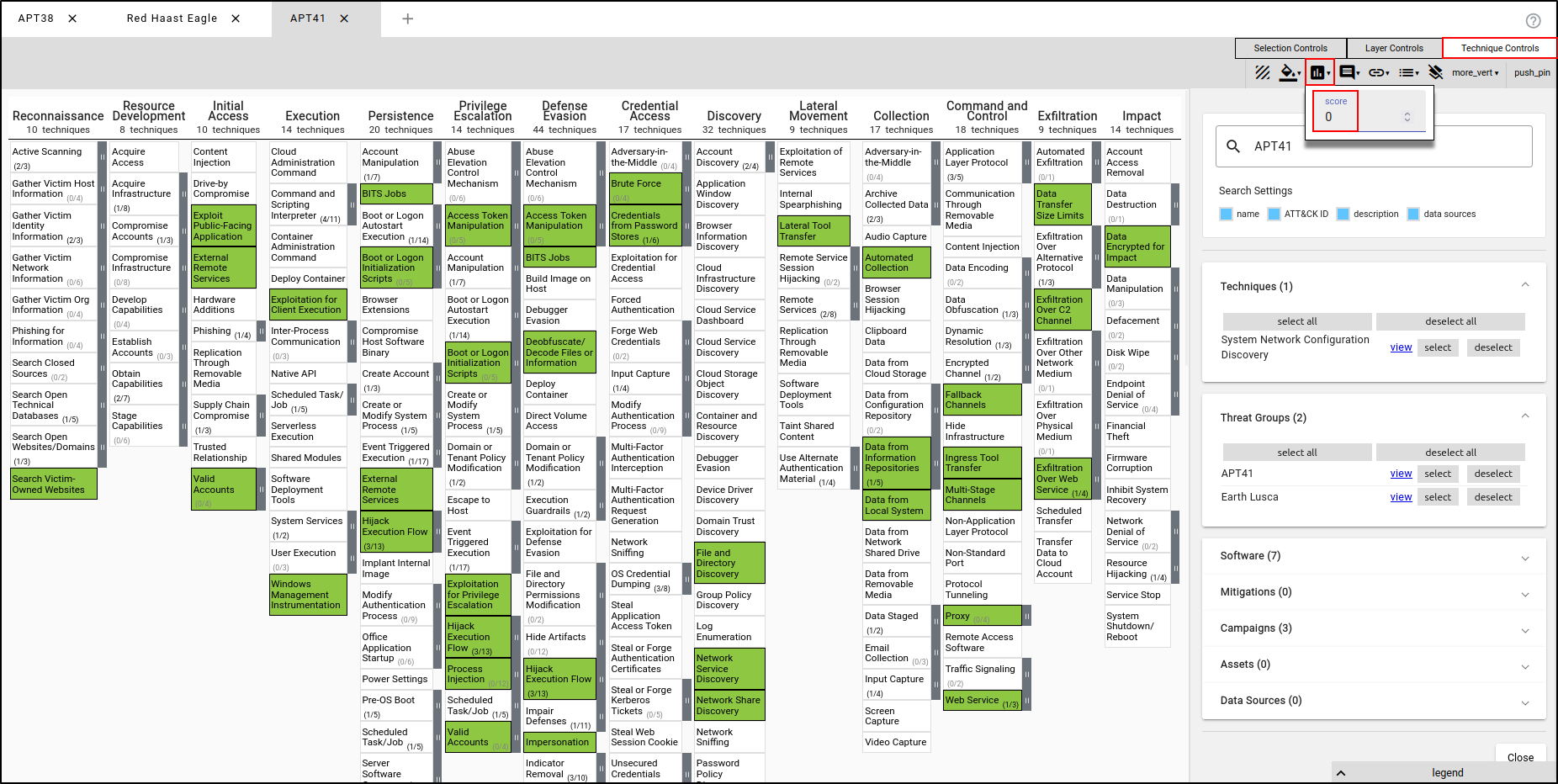
Select Impersonation and File and Directory Discovery and assign the score of 3. This will render the TTPs in red, indicating that the red team was successful in executing these TTPs without being detected by the blue team.
There are many ways to implement colour coding, and it is up to you to define and interpret it.