Configure Aurora responses
Aurora can associate response actions with Sigma matches. Treat every response as a controlled change: understand its target, simulate it first, verify a positive and negative case, and maintain a rollback path.
Choose the least disruptive useful action
The original guide documents process suspension, process termination, process dumping, reporting, logging, command execution, and combined response sets. Before activating one, answer:
- Which exact rule can trigger it?
- Which process or artifact will it affect?
- Can the action interrupt legitimate work?
- What evidence must be preserved first?
- How will you reverse or recover from it?
Response types, flags, and rule association
The preserved material below documents predefined and custom responses, simulation, recursion, privilege and ancestor controls, process-ID fields, inline responses, and response sets.
Responses
Responses in Aurora agents are an enhancement to the Sigma standard. They enable the agent to take specific actions when a Sigma rule is matched, providing an immediate response to identified events. This functionality can be effective in containing threats or minimising potential damage. However, improper use can cause significant issues.
Caution:
Responses should only be applied in scenarios where you are completely confident that the rule will not trigger false positives. Custom actions must be thoroughly tested before deployment.
Intended Use Cases:
- Containing worm outbreaks
- Ransomware mitigation
- Enforcing strict blocking of specific tool usage (for broader control, consider using AppLocker).
Types of Actions
The Aurora agent supports two categories of responses:
- Predefined
- Custom
Actions can include a predefined set of responses or custom commands, as illustrated below.
Predefined Responses
suspend: Temporarily suspends the target process.kill: Terminates the target process.dump: Generates a dump file in the folder specified by thedump-pathconfiguration.
Response Flags
Responses in Aurora can be customised using various flags defined in the YAML configuration as key-value pairs. The available response flags are as follows:
Simulate
The simulate flag ensures that no response is triggered upon a match. Instead, a log entry is created to indicate which response would have been executed. This mimics the behaviour when --activate-responses is not set.
- Supported for all responses.
Recursive
The recursive flag extends the response to include all child and descendant processes of the targeted process.
- Supported for predefined responses.
- Default value:
true.
Low Privilege Only
The lowprivonly flag ensures that a response is triggered only if the target process is not running as LOCAL SYSTEM or another elevated privilege.
- Supported for predefined responses.
- Default value:
true.
Ancestor
The ancestors flag allows the response to target an ancestor of the process instead of the process itself.
ancestors: 1targets the parent process.ancestors: 2targets the grandparent process, and so on.ancestors: allapplies the response to all ancestors up to the first invalid ancestor (determined by thelowprivonlyflag).- Supported for predefined responses.
- Default value:
0(no ancestor targeted).
Process ID Field
The processidfield flag specifies the field containing the process ID of the target process.
- Supported for predefined responses.
- Default value:
ProcessId.
Specifying a Response for a Sigma Rule
Aurora allows responses to be defined for Sigma rules in two ways, each with its own benefits and drawbacks.
Inline Responses
Responses can be embedded directly within a Sigma rule.
- Advantages:
- Useful for testing purposes.
- Keeps the response and rule in a single file for simplicity.
- Disadvantages:
- Less flexible since the same response will be active on all systems where the rule is deployed.
- Difficult to list all active responses.
Example of a Sigma Rule with Inline Response:
title: Example rule with inline response
logsource:
   product: windows
   category: process_creation
detection:
   selection:
      Image|endswith: '\example.exe'
   condition: selection
response:
   type: predefined
   action: kill
Response Sets
Responses can also be defined in a separate response set file.
- Advantages:
- Allows centralised management of responses.
- Responses can be customised for specific systems or environments.
- Easier to update and track active responses.
- Usage:
- A response set file includes a response definition and a list of rule IDs to which the response applies.
- Multiple response set files can be provided during startup using the
-response-setoption.
- Priority:
- If a rule has responses defined inline and in response sets, the response from the last-specified response set takes precedence.
Example of a Response Set File:
description: My example response set
response:
   type: predefined
   action: kill
   lowprivonly: true
   ancestors: all
rule-ids:
   - '87df9ee1-5416-453a-8a08-e8d4a51e9ce1'  # Delete Volume Shadow Copies Via WMI
   - 'ae9c6a7c-9521-42a6-915e-5aaa8689d529'  # CobaltStrike Load by Rundll32
Reversible Notepad validation
Begin with the original Notepad exercise because its target is visible and its impact is easy to reverse. Snapshot the VM, confirm the baseline, and run a benign control after the positive test.
Activating Response Sets
Suspending Notepad Process
The objective is to verify that Aurora Lite can suspend a simple process.
Create a simple Sigma rule to detect Notepad. Save the following Sigma rule as proc_creation_notepad.yml in C:\aurora\custom-signatures\sigma-rules:
title: Detect Notepad Execution
id: test-notepad-rule
status: test
description: Detects when notepad.exe is started.
tags:
    - testing
logsource:
    category: process_creation
    product: windows
detection:
    selection:
        Image|endswith: '\notepad.exe'
    condition: selection
falsepositives:
    - None
level: medium
Create a response set to suspend the Notepad process. Save the following response set as test_notepad.yml in C:\aurora\response-sets:
description: Suspend Notepad process for testing
response:
    type: predefined
    action: suspend
    lowprivonly: false
    ancestors: 0
    recursive: false
rule-ids:
    - 'test-notepad-rule'
Install and activate your test_notepad.yml response set using Aurora Lite:
aurora-agent.exe --install --response-set c:\aurora\response-sets\test_notepad.yml --activate-responses
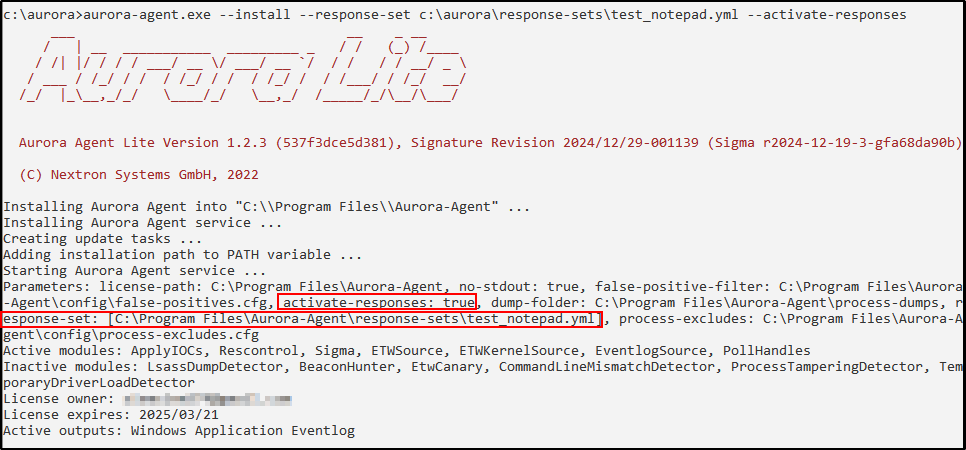
Ensure test_notepad.yml is located in C:\Program Files\Aurora-Agent\response-sets and proc_creation_notepad.yml is in C:\Program Files\Aurora-Agent\custom-signatures\sigma-rules.
Next, open Task Manager and Notepad. Verify that Notepad (notepad.exe) is instantly suspended.

Evidence checklist
- Exact rule and response-set configuration
- Aurora service and rule-load status
- Positive-test event and response result
- Benign control and its non-response result
- Recovery or rollback confirmation
- Known limitations and possible false positives
Checkpoint
The intended test triggers the bounded response, the benign control does not, evidence remains available, and the endpoint returns to its known-good state.